
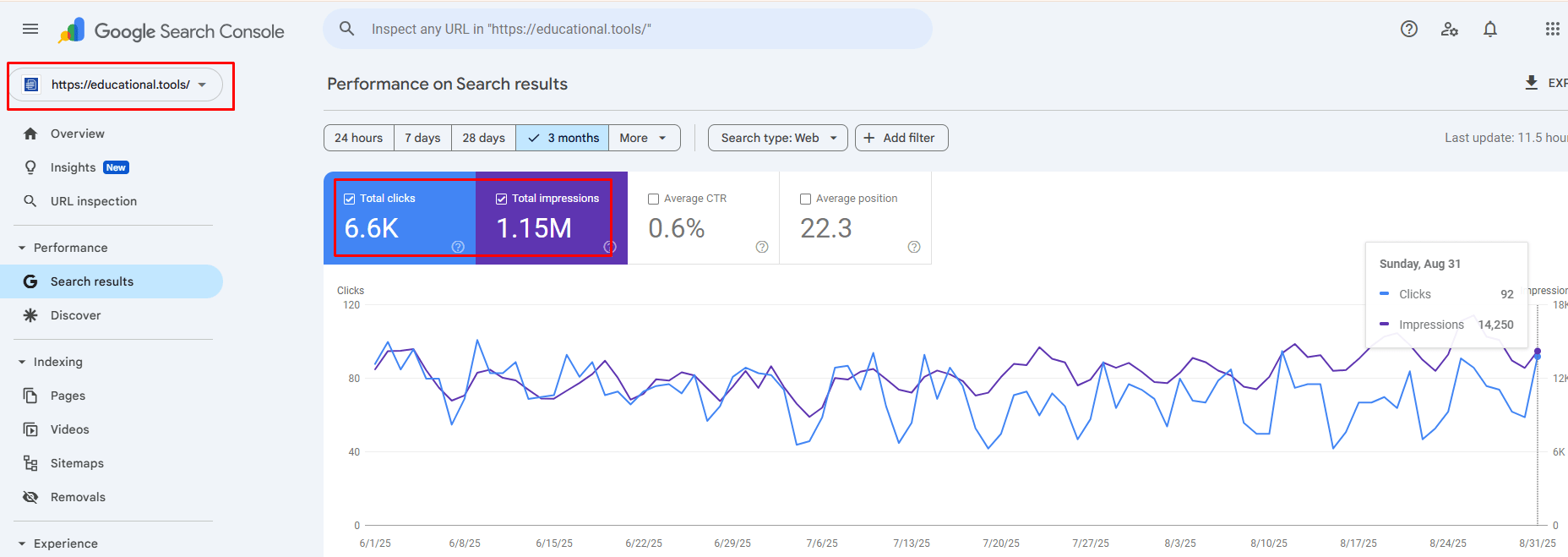
Understanding what is Google Search Console used for is one of the most important steps you can take to improve your website’s SEO.
Are you publishing blog posts, doing all the “right” things in SEO, and still watching your traffic sit flat?
Or worse which going down month after month even though you’re working so hard on it? If you’ve been asking what does Google Search Console do, this guide will give you the complete answer.
I’ve been in digital marketing for years now, and I’ve worked with businesses startups, local
brands, growing e-commerce stores who had the exact same problem. They were guessing. They
didn’t know what Google actually thought about their website. And that one mistake was silently killing
their rankings.
So here’s what I’m going to do. I’ll walk you through exactly what Google Search Console does, why
you absolutely cannot afford to ignore it, and how you should actually be using it in a smart and
practical way. No fluff and no confusing technical talk. Just real, honest stuff you can use starting
today.
So let’s break down exactly what is Google Search Console used for and how you can use it today.
Before we get into the features, let me quickly answer what is Google Search Console used for in simple terms.
Table of Contents
What Is Google Search Console Used For, Really?
Before anything else let me explain what this tool actually is.
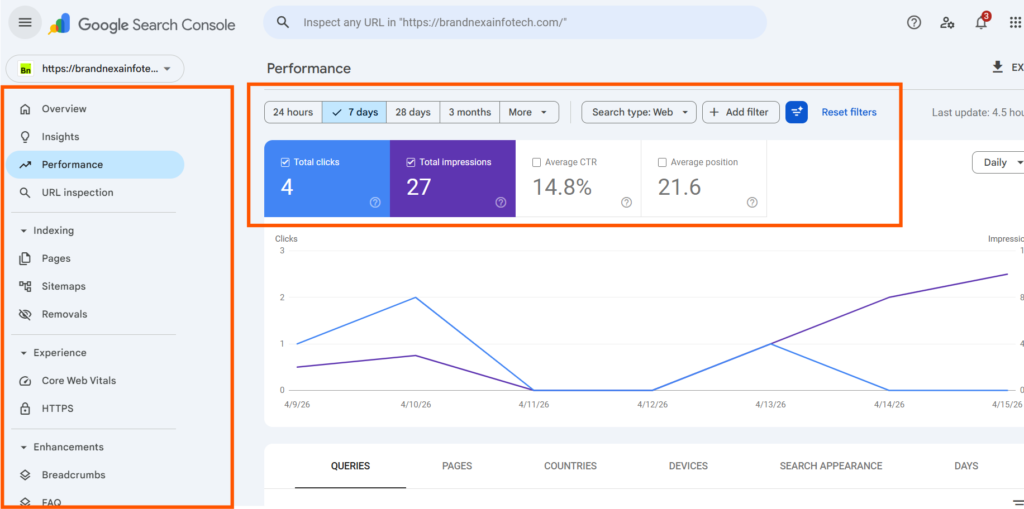
Google Search Console (or GSC, as people in the SEO world like to call it) is a completely free tool
made by Google itself. It shows you how your website is doing in Google Search. You can think it as your website’s personal dashboard which that tells you exactly how Google sees your website, what it finds good, what to ignores, and where things are going wrong so you can fix them.
Does that sound useful? Because it really, really is.

1. Google Search Console Shows Keywords which Bringing Traffic
Inside GSC, there’s a section called the Performance Report. It’s a feature which will tell you real search behaviour showing you the exact phrases people typed into Google that led them to your pages.
One of the core things are Google Search Console is used for is revealing the exact search queries bringing people to your site.
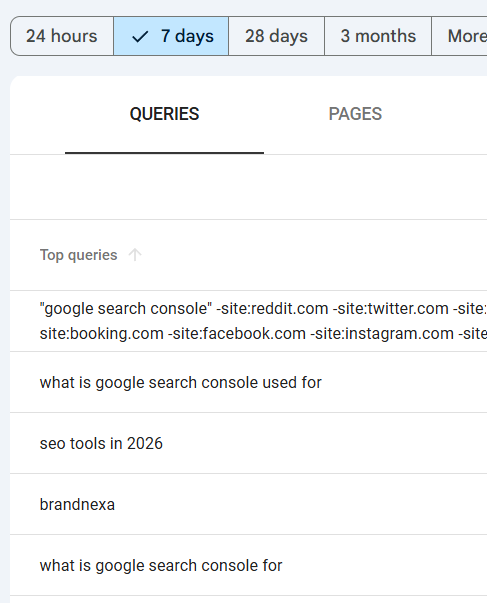
Why does this matter so much? Because you might think you’re ranking for one thing, but Google is
actually showing your page for something completely different.
I’ve seen this happen again and again with clients they optimise for “best website design company” but Google is sending them traffic for “affordable web design India.” That’s a completely different audience.

What you should do:
Here are the step by step guide:
1. Open GSC
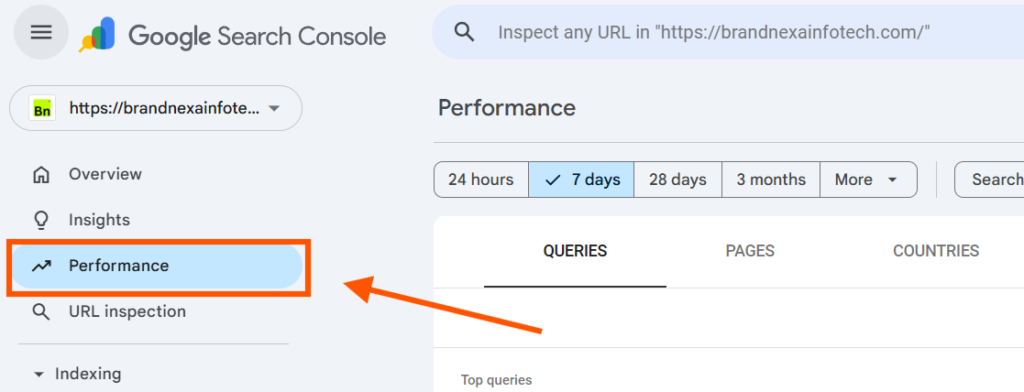
2. Go to Performance
3. Filter by Impressions
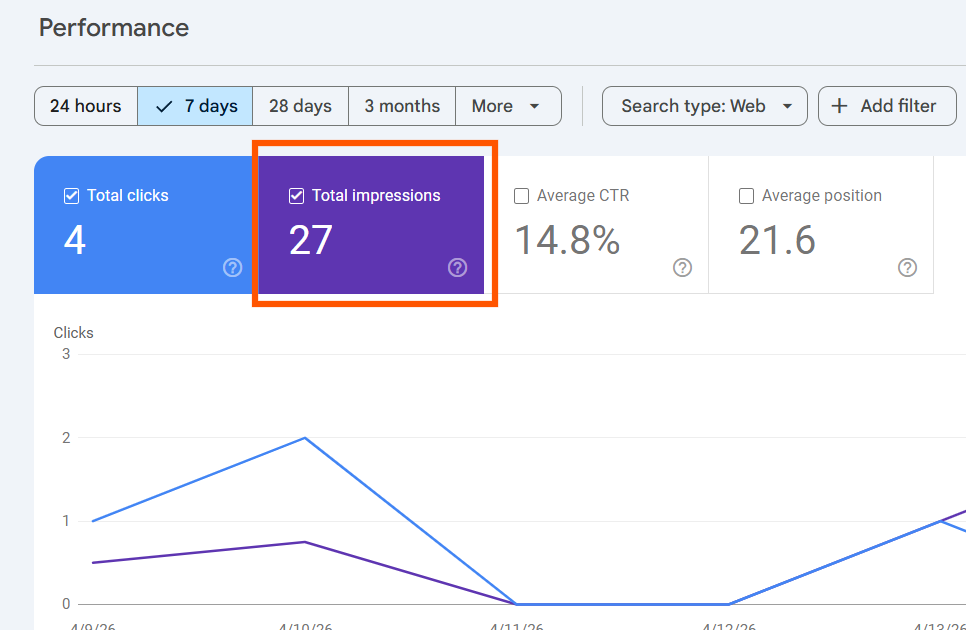
4. Look for keywords where you’re getting many impressions but very few clicks.
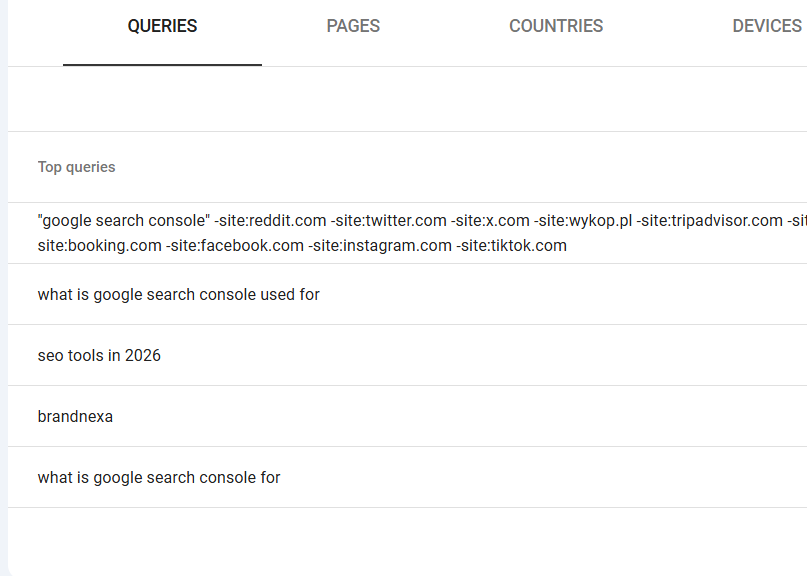
Those are your biggest opportunities you’re showing up, but not convincing people to visit.
Also Read: 27 Best WordPress Templates in 2026
2. It Tells, Which Pages Google Has Indexed
Here’s something that surprises a lot of people. When people ask what does Google Search Console do for indexing, this section is the answer.
Publishing a page on your website doesn’t guarantee that it will rank in Google’s search results. Google has to discover it, crawl it, and then decide to include it and sometimes, for various reasons, it doesn’t. That process is called indexing, and sometimes Google skips pages for all sorts of reasons.
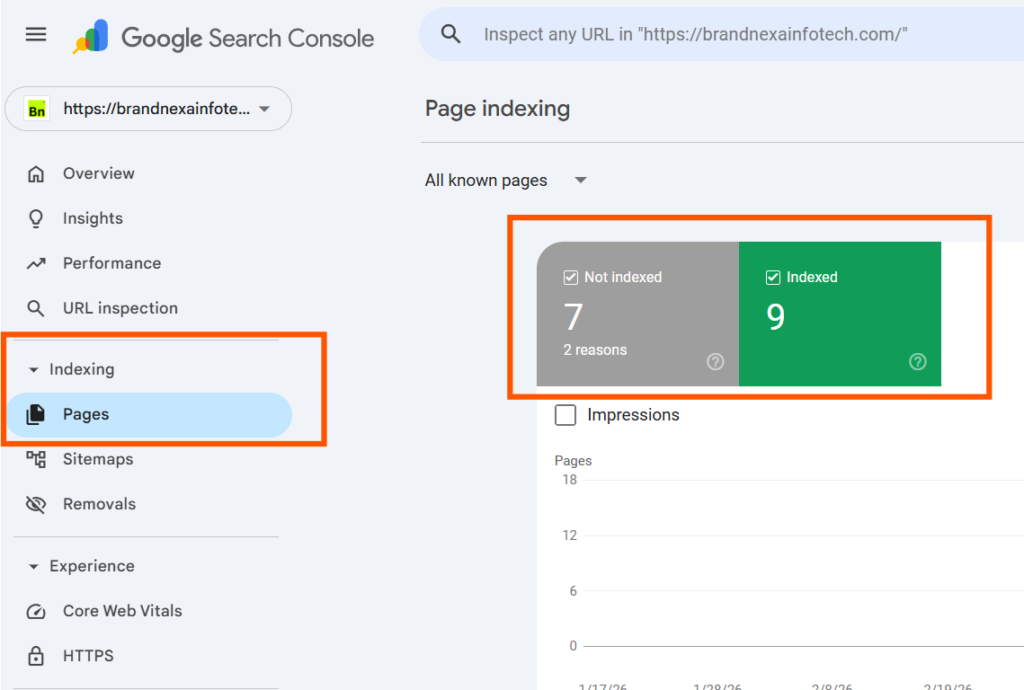
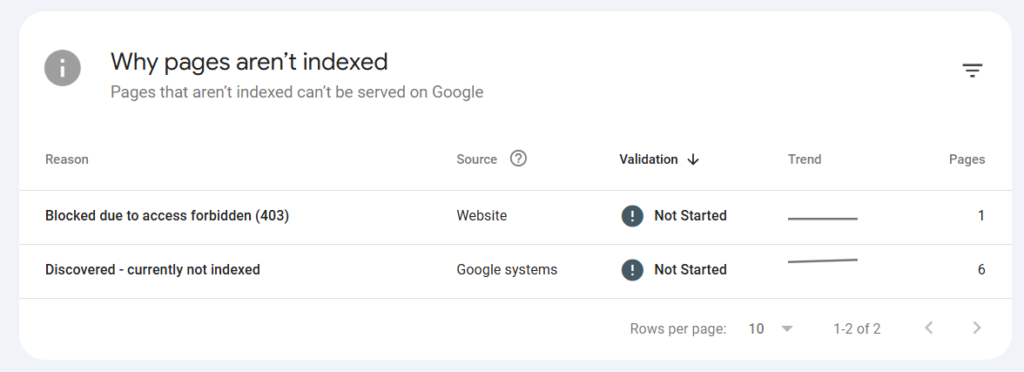
GSC has a section called Coverage (now called the Index section in newer versions). It shows you
exactly which of your pages are indexed, which ones are not, and more importantly why they’re
not.
In my experience, businesses lose a surprising amount of traffic simply because their best pages
were accidentally blocked from indexing. A wrong setting in a sitemap file. A stray “noindex” tag
added by mistake. You’d never know unless you checked
What you should do:
- Go to Index → Pages in GSC and look at the “Not indexed” tab.
- Fix the errors listed there one by one.
- Start with the ones labelled “Crawled currently not indexed.”
3. It Lets You Submit Sitemaps and Speed Up Indexing
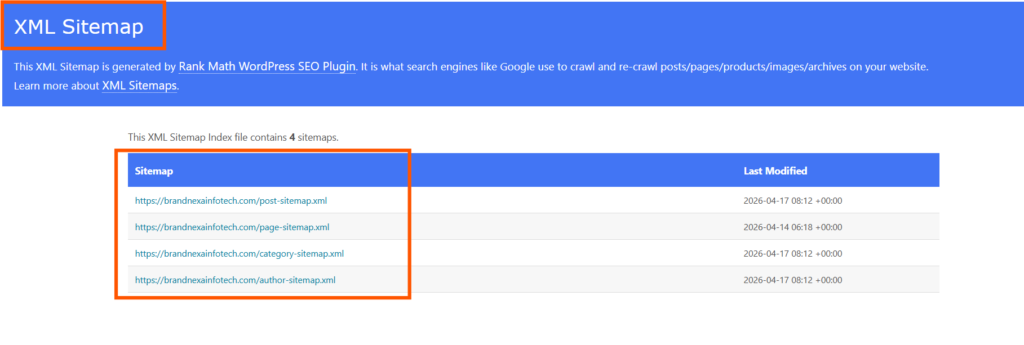
A sitemap is basically a list of all the pages on your website, handed over to Google in a neat file. It
helps Google find and crawl your content faster, especially if your site is new or you keep adding
fresh content.

What you should do:
- Create an XML sitemap using a plugin like Yoast SEO (if you’re on WordPress) and submit it inside GSC under Sitemaps.
- Check back after a few days to see how many URLs Google has processed.
- Here’s How to submit sitemap to the google search console
4. It Shows Core Web Vitals (Site Speed Score)
Since 2021, Google officially uses something called Core Web Vitals as a ranking factor. These are
three measurements that judge how fast and smooth your website experience is for real users.
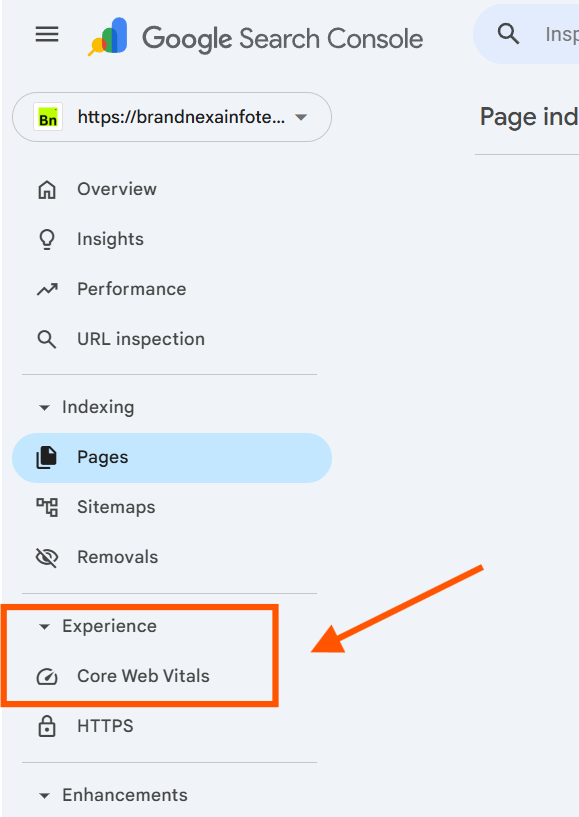
GSC has a whole section dedicated to showing you whether your pages are passing or failing these
scores. If your pages are in the “Poor” category, your rankings are suffering for it.
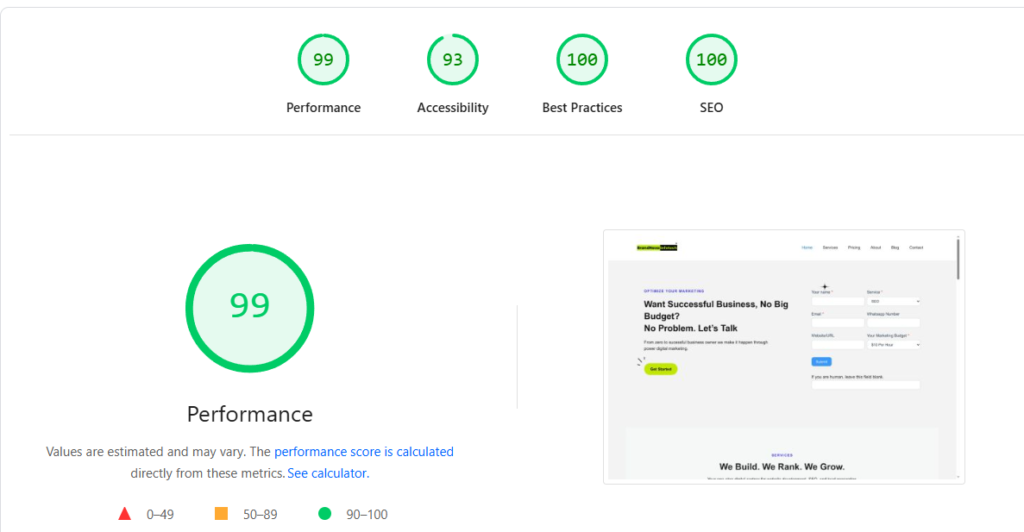
I personally prefer using GSC’s Core Web Vitals report over other speed tools because it’s based on
real user data, not just a lab test. That’s a much more honest picture.
What you should do:
- Go to Experience → Core Web Vitals in GSC.
- Look at the “Poor URLs” list.
- Pass these to your web developer or a good agency and ask them to fix the issues listed.
5. GSC Alerts When Google Finds Any Penalties
Imagine someone at Google literally opening your website, going through your pages, and deciding your site doesn’t deserve to rank. That’s exactly what a Manual Action is. And the moment that decision is made, your traffic can fall off a cliff sometimes overnight.
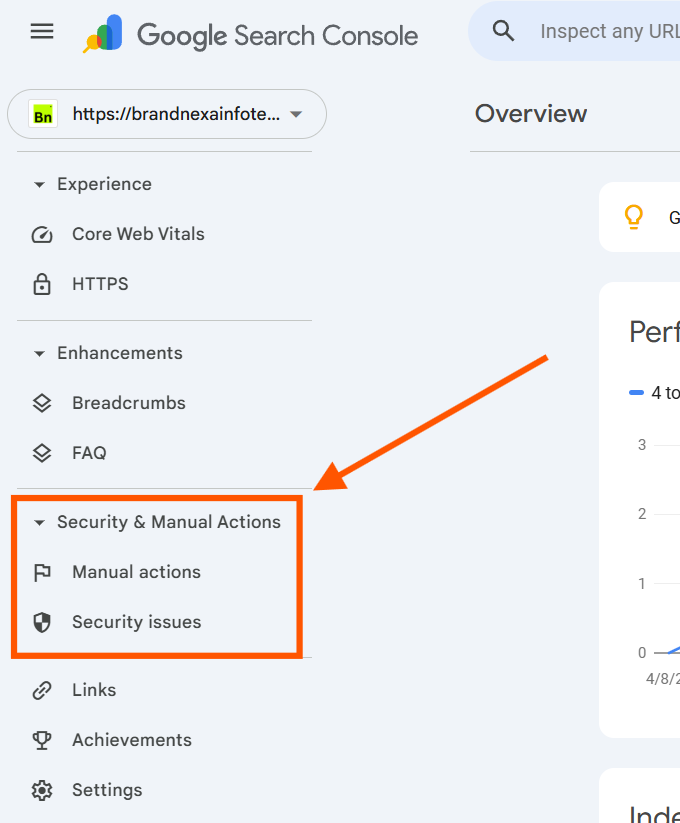
The good news? GSC will tell you if this has happened to you. This is another critical part of what is Google Search Console used for is protecting your site from penalty damage.
There’s a whole section called Manual Actions under Security & Manual Actions. If it says “No issues detected” you’re safe.
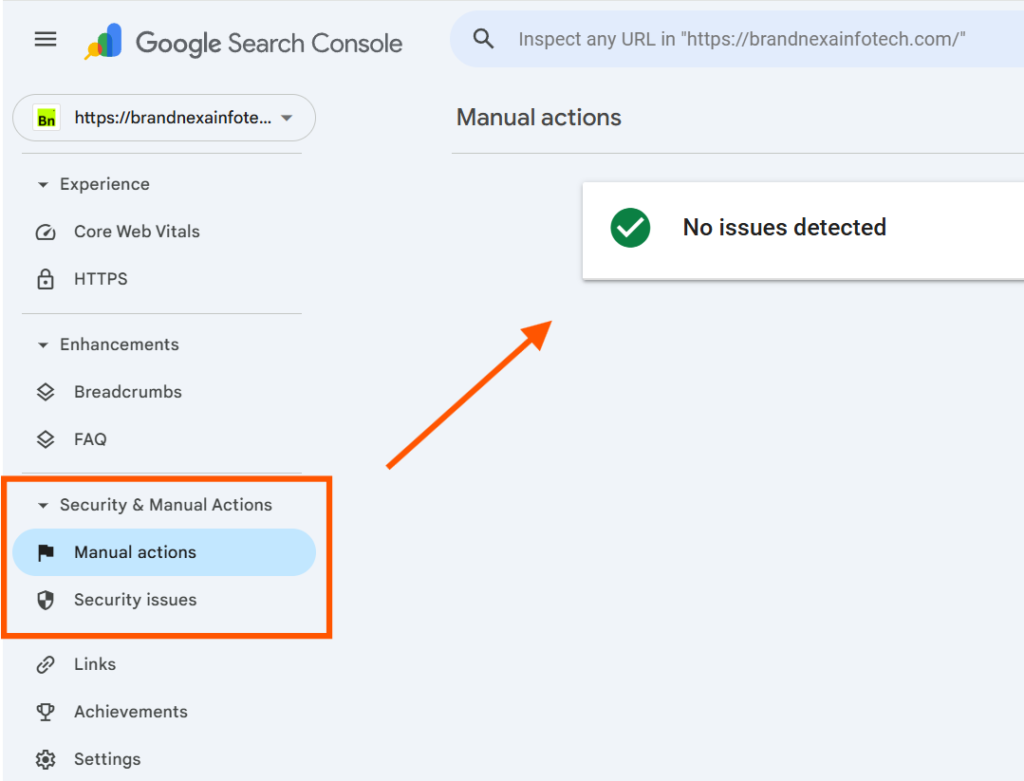
What you should do:
- Check the Manual Actions section right now.
- If you find an issue, fix it completely and then submit a reconsideration request through GSC itself.
6. It Tells You About Mobile Usability Problems
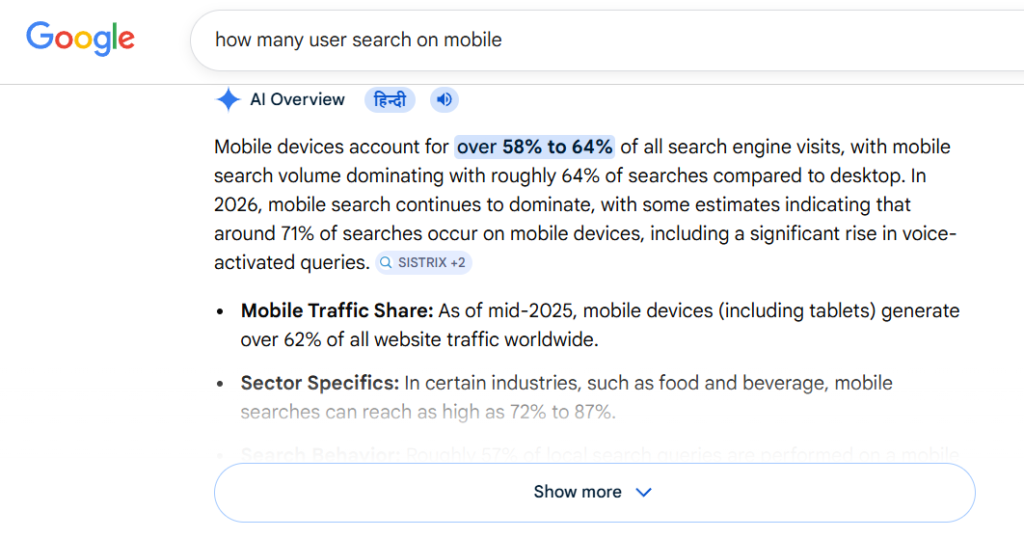
The majority of Google searches now happen on mobile devices and If your website looks broken or
hard to use on a smartphone, Google knows and it will rank you lower because of it.
What you should do:
- Go to Experience → Mobile Usability in GSC.
- Fix every page flagged with errors.
7. It Helps to Understand Position in Google Search results
In the Performance report, GSC shows you something called Average Position. This tells you where
your page typically appears in Google’s results for a given keyword. Position 1 is the top result.
Position 50 is… well, nobody goes to page 5.
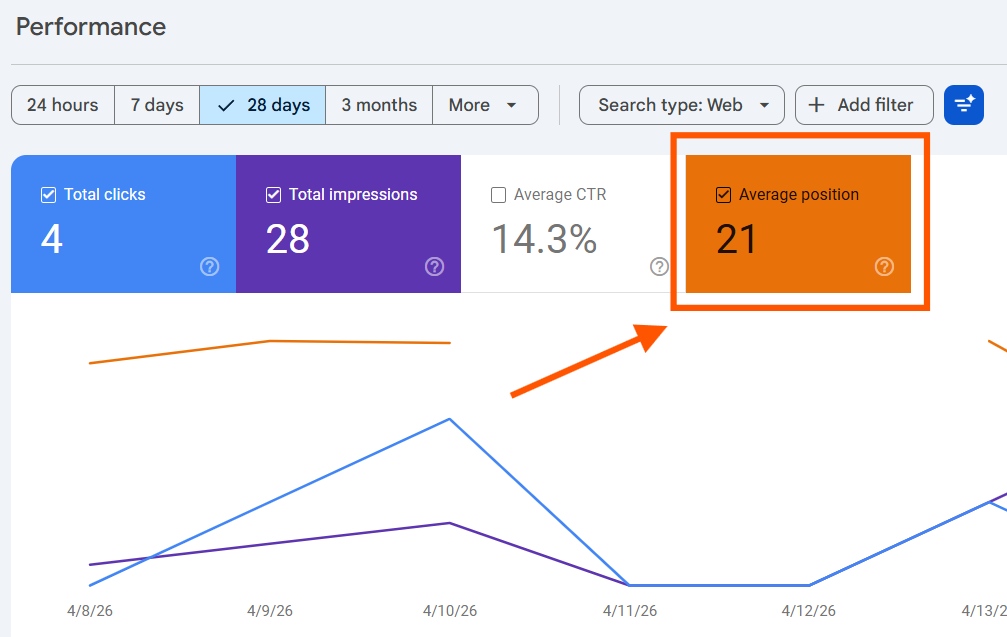
In my experience, web pages which are ranking in the 11–20 range are where the real money is. You’re already on Google’s radar for those topics a targeted content improvement, a stronger internal link, or a better title can be enough to pull them onto page one.
Don’t just create new content. Go fix the content that’s almost ranking. That’s your fastest win.
What you should do:
- In GSC Performance, sort by Average Position.
- Find pages ranking between position 8 and 20.
- Update those pages add more detail, improve the title and meta description, add internal links.
Also Read: 9 Best SEO Tools for 2026
My Take: Don’t Sleep on This Free Tool
Google Search Console is one of those tools where people think, “I’ll set it up later,” But what is Google Search Console used for completely free is something most paid tools still can’t match. because it’s completely free and the data inside it is genuinely priceless.
How I Used Google Search Console to Rank a Website From Zero
Are you publishing content every single week, doing all the right things, and still watching your organic traffic just sit there doing absolutely nothing? Or worse, maybe even going down month after month even though you are putting in all that hard work?
I have been doing digital marketing for years now at BrandNexa Infotech, and I have helped small businesses, startups, and growing brands go from zero Google presence to consistent monthly leads. I know exactly what that frustration feels like when you are working hard but Google is simply not responding.
So here is what I am going to do. I will walk you through a real, honest case study of how I used Google Search Console to rank a website and also answer exactly what is Google Search Console used for in the most practical way possible step by step, with actual numbers. No fluff and no vague advice. Just the real stuff.
Google Was Basically Ignoring The Website
A small home services business came to me with a very common problem. They had a WordPress website, 12 blog posts published over six months, and almost zero organic traffic coming in. They thought they were doing everything right.
They were not.
The real problem was that they had absolutely no idea what Google actually thought about their website. And that one blind spot was silently killing everything.
Step 1: I Fixed the Indexing Problem First
The first thing I did was connect their site to Google Search Console and check the Index Coverage report inside it.
Out of 12 published pages, only 4 were indexed by Google. A wrong setting in their sitemap file had accidentally blocked 8 pages from ever appearing in search results. They had been writing content for six months that Google had never even read.
Think about that for a second. All that effort, completely invisible.
I fixed the sitemap file, resubmitted it inside GSC under the Sitemaps section, and within one week, all 12 pages were indexed. That single fix alone doubled their crawled pages overnight.
Step 2: I Found the Hidden Keyword Opportunities
Next I went into the Performance Report inside GSC. This is honestly one of the most powerful things about what is Google Search Console used for it shows you every single search query real people typed before landing on your site.
I found one blog post getting 1,400 impressions every single month but only 11 clicks. The average position was sitting at 14. That means it was so close to page one, but just not quite there yet.
So I rewrote the title tag, improved the meta description, added three internal links, and expanded the content from 600 words to 1,100 words with more specific and useful information.
Within 45 days, that one page jumped from position 14 all the way to position 6. Clicks went from 11 to 94 per month. From one page. One fix.
Does that sound like something you need? Because it gets better.
Step 3: Core Web Vitals Were Hurting Rankings Silently
The Core Web Vitals section inside GSC showed that 9 pages were sitting in the “Poor” category. The main reason was uncompressed images making the site extremely slow for real users.
After compressing images and fixing layout shift issues, 8 of those 9 pages moved into the “Good” category. Rankings across the board started improving within the next 60 days.
In my experience, this is one of the most ignored fixes in SEO. People focus on content and completely forget that page speed is a confirmed Google ranking factor since 2021 and this is exactly why understanding what is Google Search Console used for goes so much deeper than just checking keywords.
Step 4: Mobile Usability Was Quietly Damaging the Experience
The Mobile Usability report inside GSC flagged 3 pages with text too small to read and buttons placed too close together on a phone screen. After fixing these issues, the bounce rate dropped and time spent on page went up both of which are signals Google watches quite closely.
More than 60% of Google searches today happen on mobile phones. If your site is broken on a phone, Google already knows it.
The Results After 90 Days
| Metric | Before GSC | After GSC |
|---|---|---|
| Indexed Pages | 4 | 12 |
| Monthly Organic Clicks | 38 | 410 |
| Pages on Page 1 | 0 | 5 |
| Core Web Vitals (Good) | 1 | 9 |
That is a 979% increase in organic clicks. From one free tool. Used properly.
Key Takeaways
People always ask what is Google Search Console used for and the honest answer is: it gives you data no other free tool can.
Here’s a quick summary of what is Google Search Console used for across its main features:
- Performance Report → See which keywords bring you clicks and impressions
- Index Coverage → Find out which pages Google has or hasn’t indexed
- Sitemaps → Submit your site map to help Google crawl faster
- Core Web Vitals → Fix speed issues that hurt your rankings
- Manual Actions → Check if Google has penalised your site
- Mobile Usability → Fix mobile problems before they cost you traffic
- Average Position → Find pages close to page one and push them over
Now that you know what is Google Search Console used for, the next step is to log in and start using it today.
1 thought on “What Is Google Search Console Used For? 7 Powerful Features Explained”