

If you want to know how to make a clickable phone number in WordPress, you’re in the right place because are visitors landing on your website but not calling you?
Nine times out of ten, it’s because your phone number isn’t clickable. People are on their phones. They don’t want to copy a number, open their dialler, and type it out manually. They want to tap once and call. That’s it.
I’ve worked with dozens of small business websites at BrandNexa Infotech, and this one tiny fix how to make a clickable phone number in WordPress has directly increased call enquiries for our clients. Simple change. Real results.
So here’s what I’m going to do. I’ll walk you through exactly how to make a clickable phone number in WordPress using three easy methods. No coding degree needed. No fluff. Just clear steps you can follow starting right now.
What Is a Clickable Phone Number, Actually?
A clickable phone number ( also called a “tap-to-call” link ) is a phone number on your website that opens the phone dialler automatically when someone taps or clicks it. On mobile, it opens the call screen instantly. On desktop, it opens Skype, FaceTime, or whatever calling app the person uses.
The code behind it is called a tel: link. It looks like this:
<a href="tel:+11234567890">+1 (123) 456-7890</a>Simple. But incredibly powerful for conversions.
Method 1: Add It Manually With HTML
If you’re comfortable going into your page editor and adding a small bit of HTML, this is the fastest method.
Here’s exactly what to do:
- Open the page or post where you want to make a clickable phone number in WordPress.
- Click on plus icon and select html code
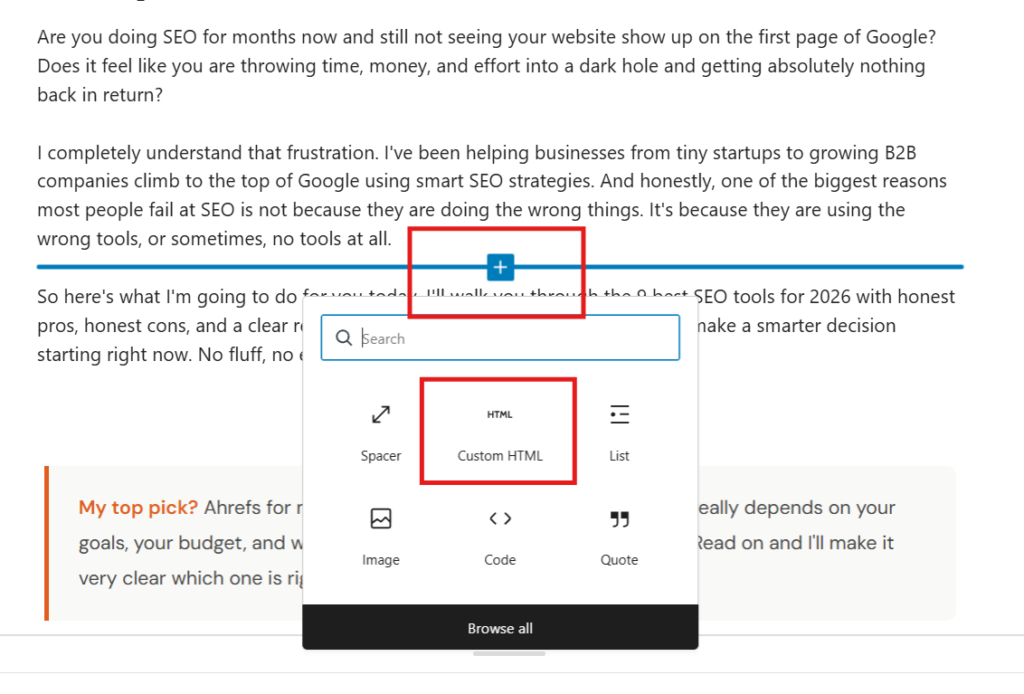
- Wrap your phone number in this code:
<a href="tel:+1YOURNUMBER">Your Phone Number</a>Replace +1YOURNUMBER with your actual number, no spaces or dashes. So if your number is (123) 456-7890, write it as +11234567890.
4. Save and preview on your phone. Tap the number. It should open your dialler instantly.
That’s the whole thing. Took you maybe two minutes.
Always use the international format with the country code at the start, that’s the + followed by the country code. For USA it’s +1. For India it’s +91.
Method 2 : Use a WordPress Plugin (Best for Non-Technical Users)
Don’t want to touch any code at all? Completely fair. There are plugins that handle this for you automatically.
The one I personally recommend is WP Call Button. It’s free, lightweight, and does exactly what it says.
Here’s how to set it up:
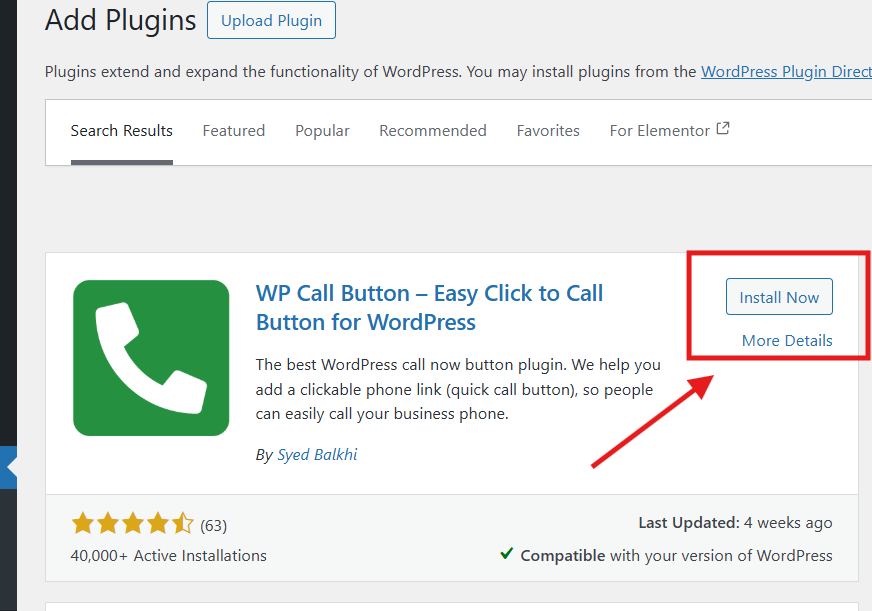
1. Go to your ordPress dashboard → Plugins → Add New.
2. Search for “WP Call Button” and install it and activate it.
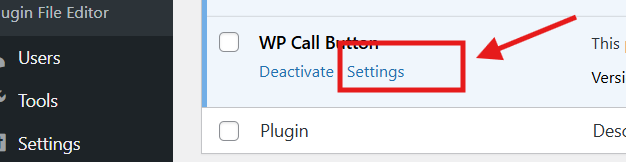
3. Go to Settings → WP Call Button.
4. Enter your phone number and customise the button text (something like “Call Us Now” works well).
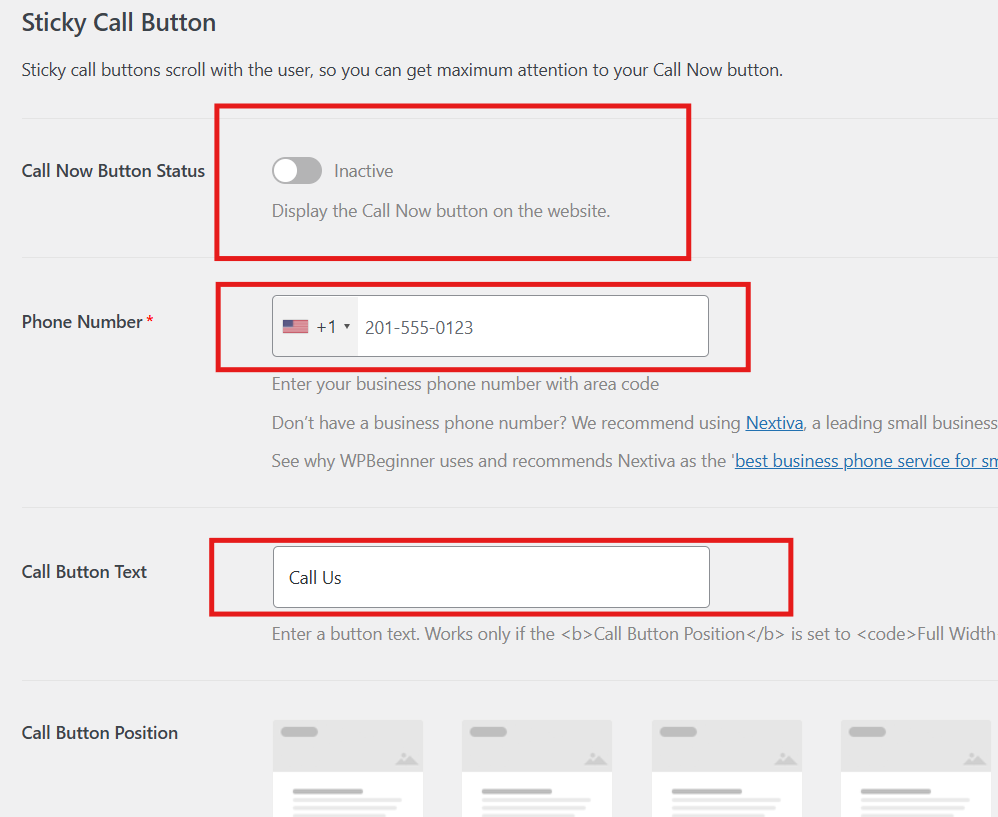
5. Toggle it on and choose where it appears sticky button, specific pages, or everywhere.
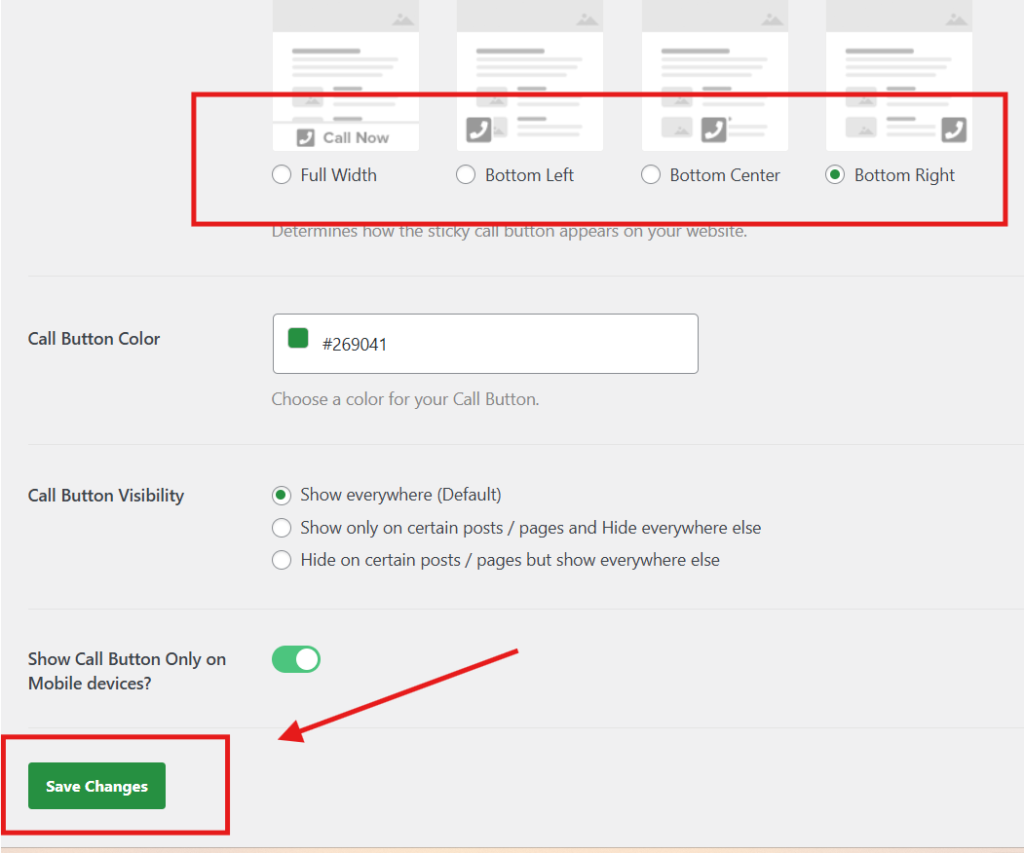
6. Save your settings. Done.
The plugin adds a floating call button on your entire website that follows the visitor as they scroll. On mobile, one tap calls you directly. It also works as a great CTA (call-to-action) element that sits visibly on every page without you doing anything extra.
One more option worth knowing: If you use Elementor to build your pages, it has a built-in phone number link option inside any button or text widget. Just select the text, click the link icon, and type tel:+1YOURNUMBER. No plugin needed if you’re already on Elementor.
Key Takeaways
- A clickable phone number uses the
tel:HTML format simple and universally supported - Method 1 (manual HTML) is fastest if you’re comfortable with basic editing
- Method 2 (WP Call Button plugin) is best if you want zero code involvement
Making your phone number clickable takes under two minutes. And the payoff more calls, more leads, more customers is completely worth those five minutes.
What method are you going to use? Drop it in the comments. And if you need help setting up your WordPress website the right way from the start, visit brandnexainfotech.com we handle everything so you don’t have to.
2 thoughts on “How to Make a Clickable Phone Number in WordPress (2 minutes)”