
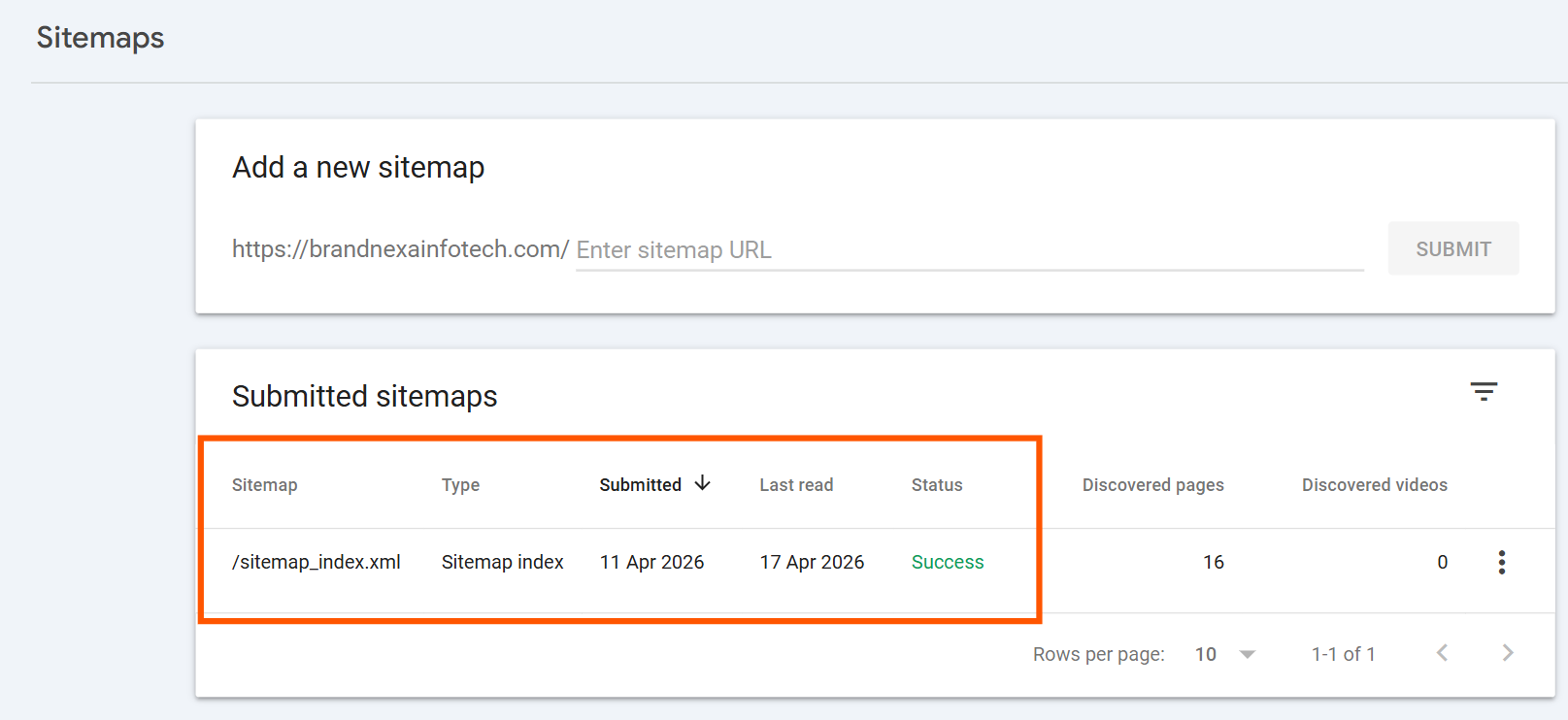
I’ll walk you through exactly how you should submit your sitemap to Google Search Console in a
very simple and easy way. No technical jargon, no confusing steps. Just a clear, honest, and
working guide you can follow starting right now, today i am covering everything from how to create
a sitemap for a website all the way to fixing indexing errors.
Table of Contents
What Is a Sitemap? (Let Me Explain It the Simple Way)
Before I show you how to submit sitemap to Google Search Console, I want to make sure you actually understand what a sitemap is. Because once you get this, everything else in this guide will feel completely obvious.
Think about your website like a big shopping mall. Imagine Googlebot (Google’s little robot that crawls websites) as a visitor who just walked into your mall for the first time. Without a directory board, that visitor has to wander around every corridor, peek into every shop, and hope they find everything. That takes time. And they might miss some shops completely.
A sitemap is that directory board. It’s a file (usually an XML file) that sits on your website and says: “Hey Google, here are all the pages I have. Here they all are in one list. Please don’t miss any of them.”
And Google Search Console? It’s the place where you tell Google about your website, fix problems, and watch how your pages are doing in search results.
If your pages aren’t indexed by Google, they don’t exist in search. Zero traffic. Zero rankings. Nothing. Submitting your sitemap is the single fastest way to fix that.
Types of Sitemaps, Which One Does Your Website Actually Need?
Let me break it down for you in a way that’s actually useful:
| Sitemap Type | What It’s For | Example File Name |
|---|---|---|
| XML Sitemap | Works for blogs, business sites, landing pages. Basically any regular website. | sitemap.xml |
| Sitemap Index File | If your site has hundreds or thousands of pages, this one file points to all your other sitemaps. | sitemap_index.xml |
| Image Sitemap | Specifically tells Google about images on your site. Great for photographers and eCommerce shops. | image-sitemap.xml |
| Video Sitemap | Helps Google discover and index videos you’ve embedded on your pages. | video-sitemap.xml |
| News Sitemap | Only for publishers who are part of Google News. Helps get news articles indexed. | news-sitemap.xml |
| HTML Sitemap | A human-readable page on your site listing all your pages. Helpful for users, not just Google. | sitemap.html |
One thing I want to be clear about here: an HTML sitemap and an XML sitemap are NOT the same thing. An HTML sitemap is a page on your website for visitors.
An XML sitemap is a technical file for search engines. You need the XML one for Google Search Console.
How to Create a Sitemap for Your Website (Platform by Platform)
Before you even think about how to submit your sitemap to Google, you need to actually have
a sitemap first. So let me walk you through how to create a sitemap, depending on which platform you’re building your website on.
How to Create a Sitemap in WordPress
If your website runs on WordPress, I’ve got really good news for you. You most likely already have a sitemap and you didn’t even have to do anything to create it.
Here’s why: the two most popular SEO plugins for WordPress (Yoast SEO and Rank Math) both generate your XML sitemap automatically the moment you install and activate them. I’ve set these up personally for dozens of clients at BrandNexa Infotech, and honestly it takes about 45 seconds.
Here’s what you do:
Yoast SEO:
Install the Yoast SEO plugin
Go to Yoast SEO Settings
Site features
make sure XML sitemaps is turned on.
Your sitemap will then be live at yourwebsite.com/sitemap_index.xml
Rank Math:
Install Rank Math
Go to Rank Math
Sitemap → turn it on. Done.
Your sitemap is live and ready to submit to Google Search Console.
How to Create a Sitemap for Shopify
Running a Shopify store? Perfect you don’t have to do anything at all to create your sitemap. Shopify automatically generates and maintains your sitemap for you.
Your Shopify sitemap URL will always be: yourstore.com/sitemap.xml just replace “yourstore” with your actual domain name. That’s the URL you’ll submit to Google Search Console. Simple as that.
How to Create a Sitemap for Wix
Wix also handles sitemap generation automatically. Go to your Wix dashboard, click on SEO tools, and Wix will show you your sitemap URL right there. Copy it and keep it handy you’ll need it in the next steps.
How to Create a Sitemap for Non-WordPress Sites
Not on WordPress, Shopify, or Wix? No problem at all. The easiest solution is to use a free sitemap generator from URL tool like XML-Sitemaps.com or Screaming Frog.
Here’s how it works: You go to the tool, you type in your website URL, and it automatically crawls all your pages and creates a complete XML sitemap file for you.
Some tools even work as a free sitemap generator for unlimited pages which is perfect if you have a lot of content.
Once it’s done, you download the sitemap file and upload it to your website’s root folder (the main folder where your homepage sits). After that, your sitemap URL will be yourwebsite.com/sitemap.xml.
How to Submit Sitemap to Google Search Console in 5 Steps
Let’s start the steps :
Step 1 : Find Your Sitemap URL Before Anything Else
Alright, now we’re getting into the actual step-by-step process of how to submit sitemap to Google Search Console. And this is genuinely step one of finding your sitemap URL.
This is so easy that people often overthink it. Open a new browser tab. Type your website URL. Then add /sitemap.xml at the end of it and hit enter.
So it would look like one of these:
- https://yourwebsite.com/sitemap.xml
- https://yourwebsite.com/sitemap_index.xml
If a page loads up with a whole bunch of XML code and links that right there is your sitemap. You’ve found it. If nothing loads and you get a 404 error, don’t panic. It just means you haven’t generated a sitemap yet.
Go back to the previous section and follow the steps for your platform first like wordpress, wix or shopfy, and then come back here.
Better to catch problems now than after you’ve already submitted it to Google. Action step: Go and find your sitemap URL right now before you move to the next step. Don’t skip this.
Step 2 : Log In to Google Search Console
Now that you’ve got your sitemap URL ready and confirmed, it’s time to log in to Google Search Console. This is where the actual sitemap submission to Google happens.
Head over to search.google.com/search-console and do your Google Search Console login using the same Google account that’s connected to your website.
If you haven’t verified your website with Google Search Console yet Read This
Once you’re logged in and your website is verified, you’ll see your property (your website) listed on the left side panel. Click on it, and it’ll open your Google Search Console Admin dashboardfor that website.
Step 3: Navigate to the Sitemaps Section Inside GSC
Okay, so you’re now inside Google Search Console and looking at your website’s dashboard. Here’s exactly where you need to go next.
On the left-hand sidebar, look for a section called “Indexing.” Click on it.
A dropdown will appear, and inside that dropdown you’ll see “Sitemaps.” Click on that.
You’ve just landed on the Sitemap Google Search Console page. This is the exact place where
all the magic happens. And honestly, from this point forward, the process is so easy that most
people are almost surprised. They expect it to be complicated and then it just… isn’t.
At the top of this page, you’ll see a white box that says “Add a new sitemap.” That right there is your destination. You’re almost done.
Step 4 : Submit Your Sitemap URL to Google (Do It Exactly Like This)
You don’t thave to ype your full sitemap URL into the submission box. Google already knows your domain you’ve already told it that when you verified your site. So all you need to type is just the last part of your sitemap URL.
So if your full sitemap URL is https://yourwebsite.com/sitemap_index.xml, then in the box,
you just have to type: sitemap_index.xml.
And that’s it. That is literally the entire sitemap submission process to Google.
Within a few hours and sometimes it can take up to a day or two you’ll see the status of your submitted sitemap change from “Pending” to “Success.” When it says Success, Google has received your sitemap and Googlebot has already started working on crawling your pages.
Sitemap Submission vs. URL Inspection Tool, What’s the Actual Difference?
This is a question I get asked pretty regularly, so I want to clear it up here once and for all. A lot of people confuse the sitemap submission feature with the URL Inspection Tool inside Google Search Console. They are different tools and they serve completely different purposes.
| Feature | Sitemap Submission | URL Inspection Tool |
|---|---|---|
| What it does | Tells Google about all your pages at one time, in bulk. | Lets you check the indexing status of one specific URL. |
| Best time to use it | When launching a new website, or after adding a lot of new pages. | When one specific important page isn’t showing up in search results. |
| How fast it works | Slower Google crawls your pages gradually over time. | Faster you can request immediate indexing for that single page. |
| Scope | Your entire website. | One URL at a time. |
How Often Should You Actually Resubmit Your Sitemap to Google?
You don’t need to resubmit your sitemap every time you publish a blog post. Once your sitemap is successfully submitted, Google checks it on its own regularly. You don’t have to do anything after that for regular content updates.
But there are specific situations where resubmitting your sitemap to Google genuinely makes
sense:
- You’ve completely redesigned your website and your URL structure has changed
- You’ve moved your website to a brand-new domain name
- You’ve switched from one SEO plugin to another and your sitemap URL has changed
- You notice that a lot of your newer pages aren’t getting discovered even after several
weeks - Your sitemap file itself has been corrupted, deleted, or moved to a different location
Outside of these situations? Just let your sitemap plugin do its job automatically and trust that Google will keep checking in. You don’t need to manually resubmit every week.
Key Takeaways: Everything You Need to Remember
- A sitemap is a file that tells Google about all the pages on your website think of it as a directory board for Googlebot
- There are different types of sitemaps (XML, image, video, news, HTML) for most websites, you need the XML sitemap
- WordPress users can generate sitemaps automatically using Yoast SEO or Rank Math it takes about 45 seconds
- Shopify and Wix auto-generate sitemaps
- To submit your sitemap: Google Search Console → Indexing → Sitemaps → Add a new sitemap → Submit
- Always check the Discovered vs. Indexed numbers after submission the gap tells you where your real SEO issues are
- Use sitemap submission for your whole site; use the URL Inspection Tool for single urgent pages
- You don’t need to resubmit regularly only do it after major site changes
- Validate your sitemap using a sitemap validator tool before submitting to catch formatting errors early
Frequently Asked Questions
How important is it to have a sitemap for a website?
Extremely important, especially if your website is new. Without a sitemap, Google has to discover your pages entirely on its own, which can take much longer and means some pages might never get found at all. Submitting a sitemap is the most direct and reliable way to make sure Google knows every single page on your site exists.
How does Google index XML sitemaps?
When you submit an XML sitemap to Google Search Console, Googlebot reads through the file and gets a list of all the URLs you’ve included. It reads the content, evaluates the quality and relevance of each page, and decides whether to add it to Google’s search index. Having your URL in a sitemap doesn’t guarantee indexing. Google still makes its own quality judgment.
How long does it take Google to crawl a sitemap?
After you submit your sitemap, Google usually acknowledges it and shows a “Success” status within a few hours. But the actual crawling and indexing of all your pages can take anywhere from 24 hours to a few weeks. It really depends on how authoritative your site is, how often Googlebot visits you, and how many pages are in your sitemap.
Can I submit multiple sitemaps to Google Search Console?
Yes, absolutely and for larger websites I actually recommend it. You can submit a separate sitemap for your regular pages, one for your blog posts, one for your images, and one for your videos.
What is the difference between sitemap.xml and sitemap_index.xml?
A sitemap.xml is a single file that directly lists all your page URLs. A sitemap_index.xml is a master file that doesn’t list pages directly instead, it points to multiple separate sitemap files.
About the Author

Devesh T
Devesh T is an SEO specialist and content strategist with 4.5 years experience in helping businesses grow organic traffic and generate leads through smart digital marketing strategies.