
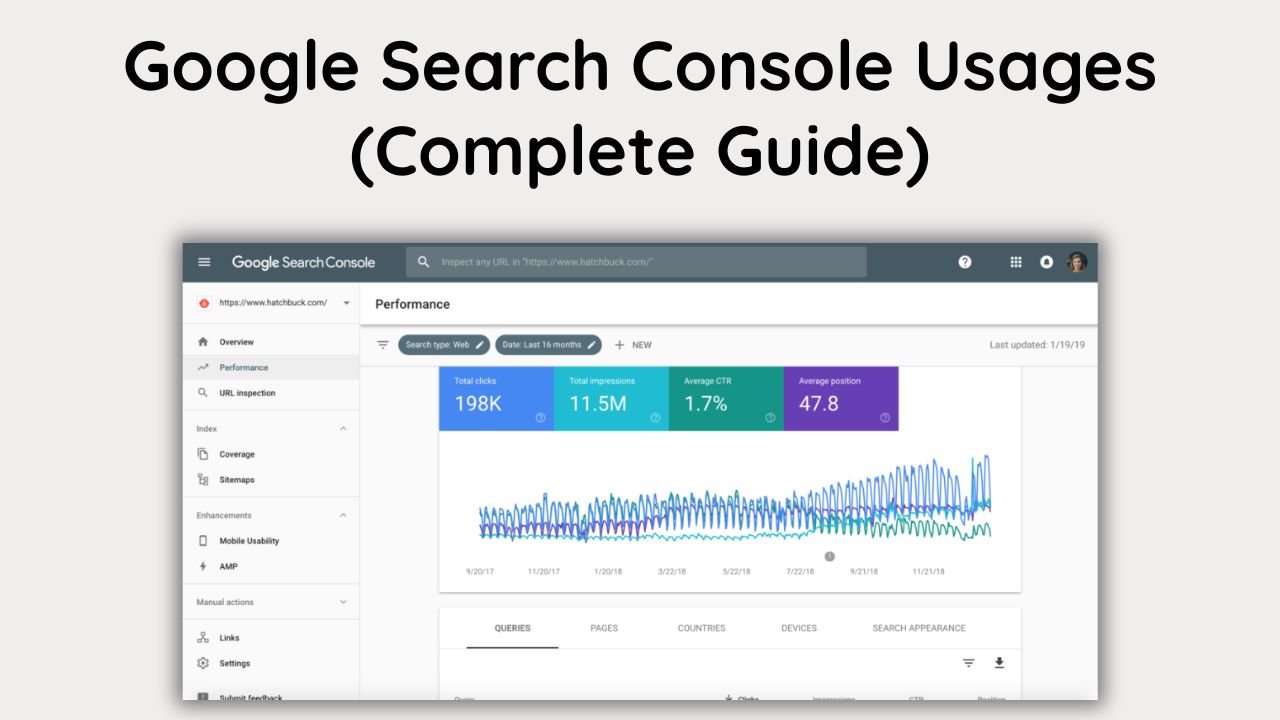
You launched your website. You worked on it for weeks, maybe even months. You published content, setup all the pages, and then sat back and waited. And nothing happened. Or worse, or maybe even less than nothing happened.
Traffic stayed flat, rankings were invisible, and you had absolutely no idea why Google was not paying any attention to your site.
Does that sound familiar? Because honestly, I hear that story from people almost every single week.
I am the owner at BrandNexa Infotech a digital marketing agency that helps businesses build, rank, and grow online. Over the years, working with clients across different industries, the one tool that I come back to again and again the one that tells the honest truth about what is happening with any website inside Google is Google Search Console.
The funny thing is, most people either have never set it up, or they have set it up and have absolutely no idea what to do with all the data sitting right in front of them.
So here is what I am going to do. I will walk you through exactly what Google Search Console is used for, how to set it up in the right way, how to use it for real SEO results, and I will also cover some advanced features that most people never even discover.
I will give you all 35 of the most commonly asked questions about this tool, answered clearly and honestly. With no fluff and no vague advice. Just a practical, complete guide that you can actually use starting today.
Key Takeaways: What Is Google Search Console Used For?
✔ Google Search Console is the only free, direct-from-Google tool that shows you exactly how Google sees and interacts with your website.
✔ Set it up immediately, submit your sitemap, and check the Performance report at least once a week as your minimum baseline habit.
✔ Use the low-hanging fruit method find pages ranking between positions 5 and 20, and push them higher with better content, stronger internal links, and targeted outreach.
✔ Connect Search Console to Google Analytics 4 to see the full picture from search
query all the way through to conversion.
✔ Check Manual Actions and Security Issues every single month problems found early are problems solved quickly.
✔ Know the limitations: 16-month data window, sampled queries for large sites, limited backlink data. Supplement with other tools where needed.
✔ Use the URL Inspection tool every time you publish or significantly update content do not wait for Google to find it on its own schedule.
Table of Contents
What Is Google Search Console? (And Why Every Website Owner Needs It)
Google Search Console most SEO professionals just call it GSC is a free tool made by Google. Its entire purpose is to show you how Google sees your website. That is really the simplest and most honest way to describe it.
Think about it like this. Imagine Google is a huge library, and your website is a book you want the library to carry. Google Search Console is the direct conversation you get to have with the librarian.
Through this tool, the librarian which is Google tells you: which pages of your book it has found, which ones it is actually showing to people who come searching, what search queries are bringing people to your book, and what technical problems might be stopping your book from being recommended to more readers.
No third-party tool not Ahrefs, not SEMrush, not Moz, not any paid platform gives you this kind of direct, first-hand communication from Google itself. Because this is Google talking to you directly.
Every piece of data inside Search Console comes straight from the source.
At BrandNexa Infotech, before I even think about putting together an SEO strategy for any client’s website, I always open Google Search Console first. Always. Because the data inside GSC tells you the truth about where things actually stand. And the truth is always the very best place to start.
What Is Google Search Console Used For? 8 Core Features Explained
Alright. This is really the heart of the whole guide. You have set up your Search Console, you are verified, and now you are looking at the dashboard for the first time, wondering what all of this actually means and what you should be looking at first.
Let me take you through every major feature, one by one. Not just what each one is, but why it matters for your SEO, and exactly what you should do with the data you find there.
1. Performance Report : Track Clicks, Impressions, CTR, and
Average Position
The Performance report is the very first thing I open every single time I log into Google Search Console for any client.
It is the report that shows you how your website is actually performing inside Google Search in real numbers, directly from Google.

Here are the four main metrics you will see, and what each one actually means:
- Clicks: This is the actual number of times someone clicked on your website link from Google search results and landed on your site. Real visits, from real searches.
- Impressions: This is how many times your website appeared anywhere in Google search results, whether someone clicked or not. An impression counts every time your page was visible to a searcher, even if they scrolled right past it.
- CTR (Click-Through Rate): This is the percentage of impressions that actually turned into clicks. So if your page showed up in search results 1,000 times and got 50 clicks, your CTR is 5%. A higher CTR means your title and description are compelling enough to make people actually click.
- Average Position: This is the average ranking position of your pages across all the queries they appear for. Position 1 is the top of the search results. Position 10 is the bottom of the first page.
The Google Search Console performance report queries section is where things get genuinely exciting for SEO work.
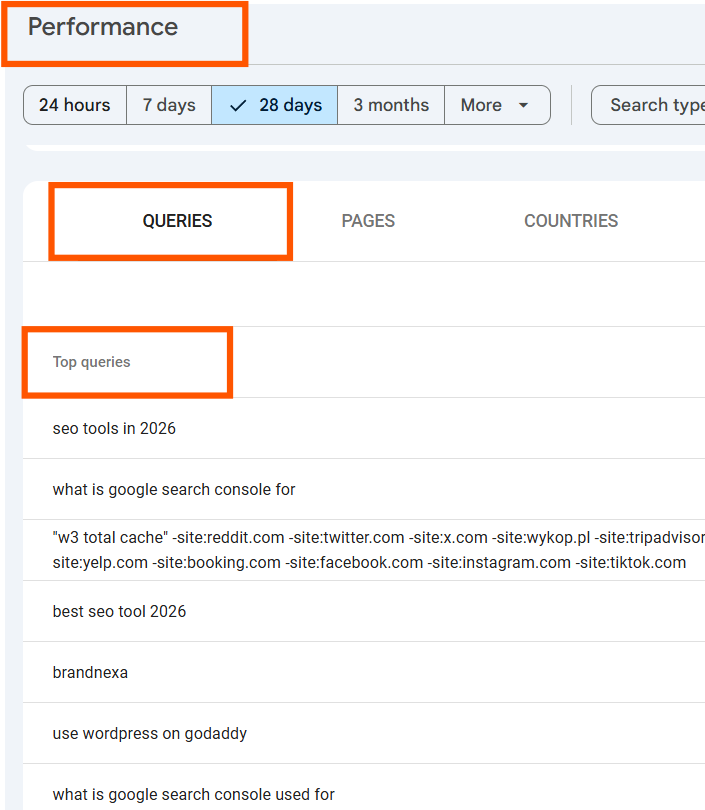
You can click on the Queries tab to see the exact, specific search terms that real people typed into Google before finding your site. This data is gold. Pure, direct, first-hand gold. And no other tool can give you this from Google’s own data.
When I was doing performance analysis for an e-commerce client a while back, I found that one of their best category pages was getting a very high number of impressions over 12,000 impressions a month but a CTR of less than 1.5%. The average position was sitting at around position 7.
The fix was simple but powerful: rewriting the page’s meta title and meta description to be much more specific and compelling. Within six weeks, the CTR had climbed to 5.4% and organic traffic from that one page nearly tripled. Same rankings. Same number of impressions. Just a much better title and description. That is the power of this data.
How to use the date range filter to compare performance periods
One of the most useful and most overlooked things you can do inside the Performance report is use the date comparison feature. Here is exactly how to use Google Search
Console date range comparison to spot real trends:
1. In the Performance report, click on the date filter at the top left. It usually says something like ‘Last 3 months’.

2. Select ‘Compare’ from the dropdown options.
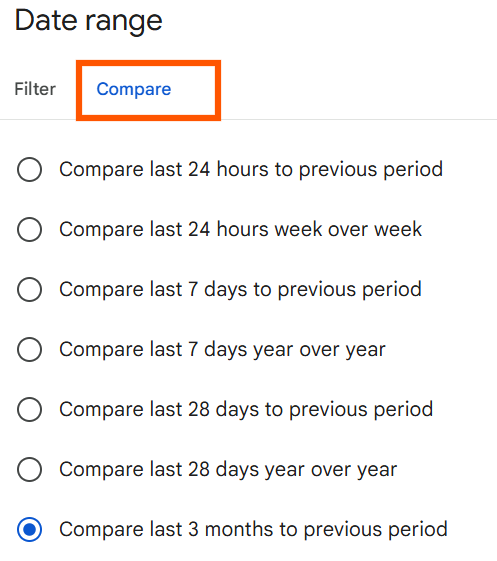
3. Now choose what you want to compare. You can compare the current 3 months to the previous 3 months, or compare this month to the same month last year for a seasonal view.
4. Look at which pages and queries have improved and which ones have dropped. The colour-coded comparison shows you instantly where things are going up and where they are going down.
I use this date comparison almost every single week when reviewing client accounts. It is one of the clearest and most honest ways to show whether the SEO work being done is actually making a real difference, or whether what looks like an improvement is really just a seasonal spike in traffic that would have happened anyway.
How to use regex in Google Search Console to filter queries
Here is a slightly more advanced technique that becomes really valuable once you are managing a larger website with hundreds or thousands of keyword variations.
Regex which stands for regular expressions lets you create pattern-based filters inside the Performance report instead of typing out each individual keyword manually.
Here is how to use regex in Google Search Console step by step:
1. In the Performance report, click ‘New’ next to the existing filter buttons at the top.
2. Select ‘Query’ from the dropdown.
3. In the filter type dropdown, change ‘Queries containing’ to ‘Custom (regex)’.
4. Now type your regex pattern. For example, if you want to see all queries that start with the word ‘how’, type: ^how
5. If you want to see all queries that contain either ‘buy’ or ‘purchase’, you can type: buy or purchase
You do not need to be a programmer to use basic regex. Just learning five or six simple patterns will allow you to filter thousands of queries very quickly and find exactly the type of searches you are looking for. There are plenty of free regex cheat sheets online that will get you up and running in under ten minutes.
2. Index Coverage: See Exactly Which Pages Google Has and Has
Not Indexed
Here is a question I want you to think about for just a moment. How many of your pages has Google actually indexed?
Not how many pages you have published. How many has Google actually decided to include in its search index and make visible in search results?
The Google Search Console index coverage report answers this question with complete clarity. And the answer is often very different from what people expect.
The report organises all your URLs into four categories:
- Valid These pages are properly indexed and eligible to show up in Google search results. This is where you want all your important pages to be.
- Valid with Warnings Google has indexed these pages but has flagged something it thinks you should know about or look into. Not an emergency, but
worth your attention. - Excluded Google has decided not to index these pages. This could be completely intentional on your part perhaps you added a noindex tag, or they are duplicate pages. But it could also be unintentional, which is a problem you need to investigate.
- Error These are pages Google tried to index but could not, because of technical problems. A 404 error, a server error, a redirect loop these all show up here and all need to be fixed.
When you want to do a Google index check using Search Console, this is always your starting point. I once ran an SEO audit for a client’s blog that had 420 published posts. When I opened the Coverage report, I discovered that only 198 of those posts were actually indexed. Less than half. More than 220 pieces of content were completely invisible to Google they had never been clicked on, never ranked, never received a single visitor from search.
The main culprit turned out to be a combination of thin content pages that Google was choosing to exclude on quality grounds, and a crawl budget issue caused by a very large number of low-value tag and category pages being crawlable.
If you ever need to deindex pages maybe a page went live by mistake, or you have duplicate content that should not be indexed the Coverage report is also where you begin that process, combined with the URL removals tool which I will cover a bit later in this guide.
3. URL Inspection Tool Test Any URL and Request Indexing
The URL inspection tool is one of those features that looks simple when you first see it, but is actually one of the most powerful things inside Google Search Console when you understand how to use it properly.
Here is how to use the Google Search Console URL inspection how to use it the right way, step by step:
- Take any URL from your website and paste it into the search bar at the very top of your Google Search Console dashboard.
- Press Enter.
- Google will instantly show you the current index status of that specific URL. Is it indexed?
- When was it last crawled? Which version did Google crawl and was it a recent crawl or is Google still working from a cached version that is months old? Are there any specific indexing problems?
Read through the full report. If there is an issue, it will tell you exactly what the issue is and link you to documentation on how to fix it.
The most immediately useful feature when you use the URL inspection tool is the Request Indexing button. Any time you publish new content or make meaningful updates to an existing page, paste the URL into the inspection tool and click Request Indexing. Knowing request indexing when to use it makes a real difference do it every time you publish new content or make meaningful updates to an existing page.
From my personal experience doing this for client sites on a regular basis, it typically speeds up the crawl to within one to three days, rather than waiting one to two weeks for Google’s natural crawl schedule to get around to it.
One important thing to understand: requesting indexing is not a guarantee that Google will index the page, or that it will rank well once indexed.
It is just you raising your hand and saying ‘Hey Google, I have something new here, please come and have a look.’ Whether Google decides to index it and how it ranks that is entirely Google’s call.
How to manually re-index a page using the URL inspection tool
Using Google Search Console to re-index a page is something I do on an almost daily basis for client websites. Here is the exact process:
1. Go to the URL Inspection tool in Search Console.
2. Enter the full, exact URL of the page you want to re-index.
3. Check the current status. If it says ‘URL is on Google’ and you have just made significant updates to the page, click ‘Test Live URL’ first to make sure Google can currently access the page without errors.
4. Then click ‘Request Indexing’.
5. If the page shows ‘Not indexed’, read the reason carefully before requesting indexing. There is no point in requesting indexing if there is an underlying technical issue that will just prevent Google from indexing it again. Fix the issue first, then request indexing.
On the topic of how to index backlinks manually using Google Search Console a question I get asked fairly often here is the honest answer. You cannot directly instruct Google to crawl a third-party website that is linking to you. You have no control over that.
What you can and should do is make sure the page on your site that is receiving the backlink is properly indexed, is technically healthy, and has a fast load time. That creates the best possible conditions for Google to find, evaluate, and pass credit through that link effectively.
4. Sitemaps Submit Your Sitemap and Speed Up Crawling
A sitemap is essentially a complete map of your website that you hand directly to Google. It is an XML file that lists all the pages on your site and tells Google: here is everything I have, please come and look at all of it.
Submitting your sitemap through Google Search Console is one of the most straightforward and most beneficial things you can do for your site’s crawlability.
Here is how to submit a sitemap to Google Search Console in five simple steps:
- In the left-hand navigation menu of Search Console, click on ‘Sitemaps’.
- In the ‘Add a new sitemap’ box, type the URL of your sitemap.
- For the majority of WordPress sites, this is simply yourdomain.com/sitemap.xml both Yoast SEO and Rank Math generate and maintain this file automatically. Click Submit.
- Google will process the sitemap and begin using it to guide its crawling of your site.
- Check back after a day or two. The report will show how many URLs Google discovered in your sitemap and whether there were any errors.
One specific issue I want to flag: if Google Search Console is not using your sitemap meaning it shows zero URLs discovered or keeps showing a ‘Couldn’t fetch’ error the three most common reasons are:
1. The sitemap URL you submitted is incorrect
2. the sitemap file itself has a formatting error, or
3. your robots.txt file is accidentally blocking Google from accessing the sitemap URL.
I actually ran into this exact situation with a client once. They had submitted their sitemap, but someone had accidentally added a line to the robots.txt file that was blocking the entire /sitemap.xml path.
Google Search Console flagged this error clearly in the Sitemaps report, which allowed us to find and fix it within about twenty minutes. Without Search Console, that kind of silent error could have sat there for months without anyone noticing.
5. Core Web Vitals Fix Page Speed Issues That Directly Hurt
Rankings
Core Web Vitals became an official Google ranking factor in 2021, and the Core Web Vitals report inside Search Console has become one of the most important technical SEO sections for any serious website owner or SEO professional to pay attention to.
The report measures three specific performance metrics:
- LCP Largest Contentful Paint. This measures how fast the main, largest piece of visible content on your page loads. Google considers anything under 2.5 seconds to be Good, 2.5 to 4 seconds to be Needs Improvement, and anything over 4 seconds to be Poor.
- INP Interaction to Next Paint (which replaced FID in 2024). This measures how quickly your page responds when a user interacts with it, like clicking a button or a link.
- CLS Cumulative Layout Shift. This measures how much your page layout unexpectedly shifts around while it is loading. If you have ever been reading a page and suddenly an image or an ad loads and pushes all the text down, making you lose your place that is CLS in action. Google measures this and penalises pages where it is a significant problem.
The Core Web Vitals report groups your pages into Good, Needs Improvement, and Poor buckets. This is incredibly useful because it shows you patterns for example, if all your blog post pages have a CLS problem, it is almost certainly a site-wide template issue rather than something unique to each individual post. That means fixing the template fixes all the posts at once.
How to use Google Search Console page speed data in a practical way: always start with the Poor URLs list, cross-reference those URLs with your most important and highest-traffic pages (which you find in the Performance report), and prioritise fixing the ones that are both Poor and high-traffic.
Then use Google PageSpeed Insights at pagespeed.web.dev to get specific, technical recommendations for each page. Once you fix the issues, use the ‘Validate Fix’ button inside Search Console to ask Google to re-evaluate those pages.
The crawl stats report, which you find inside Settings in Search Console, is also worth checking here. It shows you how often Google is crawling your site and how your server is responding. If your server is returning high error rates or very slow response times during Googlebot’s visits, that is a hosting issue that can directly affect your crawl coverage and your rankings.
6. Links Report Check Your Backlinks and Internal Links
The Links report in Google Search Console gives you two completely different and equally important types of link data: your external links, which are backlinks from other websites pointing to yours, and your internal links, which are links between pages within your own site.
On the external links side, checking backlinks using Google Search Console is one of the quickest ways to get an overview of your overall backlink profile. The report shows you your top linked pages the pages on your site receiving the most external links your top linking sites, and the anchor text that other websites are using when they link back to you.
Is it as detailed or as comprehensive as dedicated backlink tools like Ahrefs or Majestic for the purpose of find links to website using Google? No, honestly it is not.
Ahrefs has a much larger index and updates much more frequently. But for a free tool that gives you Google’s own perspective on your backlink profile, and for spotting obvious red flags like a sudden influx of hundreds of links from suspicious-looking domains it is very effective and it costs nothing.
If you want to find backlinks using Google Search Console without spending a penny on third-party tools, this report is exactly where you start.
The internal links section is the part that most website owners completely skip over. But I want you to pay attention to this one. Here is why. When you use Google Search Console internal links data, you can see exactly which pages on your site have the most internal links pointing to them. Those pages are the ones Google considers most architecturally important based on how your own site is structured.
If your most valuable commercial page the one you really want to rank only has three or four internal links pointing to it while an old blog post has forty, that is an imbalance you can fix quickly. Adding strong, contextual internal links to your most important pages is one of the highest-ROI and lowest-cost SEO actions you can take.
7. Manual Actions and Security Issues Detect Penalties Before They Cost You Traffic
If you have ever experienced a sudden, dramatic drop in your organic traffic with no obvious explanation, one of the absolute first things you should check is the Manual Actions report inside Google Search Console.
A manual action means that a real human reviewer at Google has specifically looked at your site and decided to apply a penalty. This is different from an algorithmic penalty, which happens automatically based on Google’s algorithm updates.
Common reasons for manual actions include unnatural link building patterns, spammy structured data markup, cloaking showing one version of your page to Google and a different version to users or simply very low-quality, thin content that is designed to rank rather than to help people.
The Security Issues section is equally critical, maybe even more so. Google actively alerts you here if your website has been hacked, if malware has been injected into your site’s code, or if Google has detected phishing pages on your domain. And yes attackers use Google Search Console to hide website hacks all the time. When a hacker successfully compromises a website, they very often add hidden pages, invisible redirects, or injected spam links that are carefully designed to be invisible to normal website visitors but fully visible to search engines. Google’s security scanning can catch this behaviour and alert you directly through this report.
In my experience at BrandNexa Infotech, I check both the Manual Actions report and the Security Issues section for every single client site at the beginning of every month without any exception at all. A manual action or a security issue that you catch in week one can be resolved, appealed, and recovered from in a matter of weeks.
The exact same issue discovered three months later after it has already destroyed your rankings and your organic traffic can take six months or more to fully recover from. Early detection through Google Search Console is genuinely the difference between a quick fix and a very painful recovery.
8. Mobile Usability Find and Fix Mobile Problems Google Can See
Google has been using mobile-first indexing for almost all websites for several years now. What this means in practice is that Google is primarily looking at the mobile version of your website when it decides how to rank your pages not the desktop version. The desktop version of your site being beautiful and functional is not enough if your mobile version is broken or difficult to use.
The Mobile Usability report in Search Console shows you exactly which pages on your site have issues that would create a poor experience for mobile users. The most common issues it flags are: text that is too small to read without zooming in, clickable elements like buttons and links that are placed too close together for a finger to tap accurately, and page content that is wider than the screen and forces users to scroll horizontally.
Every single mobile usability error represents a page that is potentially losing rankings simply because it does not display properly on a mobile device. These issues are almost always fixable once you know they exist. And the only reliable way to know they exist across your entire site not just the pages you personally happen to check on your phone is through this report in Search Console.
How to Use Google Search Console for SEO (Step by Step)
Now that you understand what each major feature does and what it is telling you, let us get into the part that actually moves the needle. How do you take all of this data and turn it into real, practical SEO improvements? That is what this entire section is dedicated to
1. How to use Google Search Console for keyword research
I want to challenge something that a lot of people believe about keyword research. Most people think keyword research means going to a tool like Google Keyword Planner or Ahrefs, searching for broad topics, and picking the keywords with the highest search volume. And while there is a place for that approach, there is another method of keyword research that is often more powerful, more specific, and completely overlooked.
Using Google Search Console for keyword research real, actionable keyword research based on how real searchers are actually finding your specific site is one of the most valuable SEO activities you can do. Here is the step-by-step process I personally use:
- Open the Performance report and click on the Queries tab.
- Sort by Impressions not by Clicks. This is crucial. You want to see the keywords where Google is already showing your content, even if you are not getting many clicks yet.
- Look for queries where you are getting a high number of impressions but a very low CTR and a position somewhere between 5 and 30. These are the keywords where there is real opportunity Google already thinks your content is relevant enough to show, but your page is not yet compelling enough or specific enough to rank at the top.
- Also look carefully at queries that surprise you. Terms you never intentionally optimised for but which are bringing impressions. These often reveal hidden keyword angles you never consciously thought about targeting. This is also one of the best ways how to see what keywords a website is using in practice not by guessing, but by reading the data Google is already handing you.
- Now cross-reference: click on the Pages tab and look at which specific pages are getting the most query diversity. A single page showing up for 50 different query variations is telling you something important about how Google sees that page and what topics it associates with it.
For use Google Search Console for SEO and keyword research in an even deeper way: look at which queries are sending traffic to pages that were not designed for those topics at all.
A blog post you wrote about one thing might be attracting searches about a completely related but different topic. That is Google showing you an unmet need an opportunity to create a new, dedicated, better-targeted piece of content that serves that search intent properly.
When I use this approach with clients at BrandNexa Infotech, query analysis is always the very first step of any content strategy. Because real data from your real site, showing you what real people are already searching for when they find you, will always be more valuable than any generic keyword research tool’s estimate. And that is exactly how to use Google Search Console for keyword research the right way not as an afterthought, but as the foundation of your entire content strategy.
2. How to use Google Search Console to find pages close to page one (and push them over)
This is honestly one of my absolute favourite SEO tactics, and it is one that I use almost every month for every active client account. I call it the low-hanging fruit method. The idea is beautifully simple.
Any page that is currently ranking in positions 4 through 15 is either just outside the top three results or sitting somewhere on the first page without getting much traffic. A page at position 9 gets roughly 2% of the clicks for that keyword. A page at position 3 gets closer to 10 to 15%.
That difference in traffic for the same keyword, just from moving up six or seven positions, is enormous. And the effort required to make that move is far less than starting from scratch with a brand-new page.
Here is exactly how to use Google Search Console to improve your rankings using this method:
- In the Performance report, add a filter and set Average Position to be ‘Greater than 4’. This filters out your already strong top-three rankings.
- Then add a second filter: Average Position ‘Less than 20’. This removes very low-ranking pages where a quick win is unrealistic.
- Now look at the filtered list of queries. Sort by Impressions. High impressions with a position of 8 to 15 is your sweet spot these are the opportunities.
- Click on a specific query to see exactly which page on your site is ranking for it.
- Go to that page and analyse it. Does it fully and deeply answer the search intent behind that query? Is the title tag strong and relevant? Does it have enough internal links pointing to it from other pages on your site? Are there other closely related pages competing with it for the same query what SEO professionals call keyword cannibalisation? This step is also where how to position keywords using Google Search Console becomes very practical you are not guessing where your keywords stand, you are looking at the exact position data and making decisions based on that.
- Make targeted improvements: deepen the content, strengthen internal links, improve the title and meta description, and where possible build a few quality backlinks to that specific page.
Search trend identification through Search Console also ties into this approach nicely. By comparing year-over-year performance data, you can spot keywords that are growing in search volume before everyone else notices. Getting ahead of a rising trend is dramatically easier than trying to catch up after it has already peaked.
3. How to use Google Search Console to monitor and improve content performance
Publishing a piece of content and then completely walking away from it is one of the most expensive mistakes in SEO. Content that is performing well today will very often slide down the rankings over the following twelve to eighteen months not because anything specifically goes wrong, but simply because the topic gets more competitive and your content gets relatively stale.
Here is how to use Google Search Console to monitor content performance on a regular, ongoing basis:
- Every single month, open the Performance report and compare the current 28 days to the previous 28 days.
- Look for pages where clicks, impressions, or average position have dropped noticeably. A page that was at position 6 and is now at position 14 is a warning sign worth investigating immediately.
- For any page showing a significant drop, use the URL Inspection tool first to rule out indexing issues. Sometimes a page drops simply because something in a recent site update accidentally added a noindex tag or broke a redirect.
- If the technical side is fine, review the content itself. Is it still up to date? Has the information become outdated or inaccurate? Did a competitor publish something significantly better on the same topic? Did you accidentally remove a key section during a recent edit?
For how to use Google Search Console data for content strategy at a higher level: regularly look at which of your pages are generating consistently high impressions with low CTR. These are pages where Google trusts your site enough to show your content in search results, but your title or meta description is not compelling enough to earn the actual click.
These pages represent incredibly high-value optimisation opportunities you do not need to create anything new, you just need to make your existing pages more click-worthy.
I also use Search Console specifically for how to use Google Search Console to decide post ideas if I see five or six closely related search queries all sending modest traffic to a single page, that is a clear signal that there is enough demand across those individual topics to justify creating dedicated, more specific content for each one. The data is showing me exactly what people want my job is just to create something that serves each of those needs properly.
4. How to use Google Search Console with Google Analytics for deeper SEO insights
On their own, Search Console and Google Analytics are both genuinely powerful tools. But when you connect them and use them together, the level of SEO intelligence you get access to is on a completely different level from either one alone.
This guide to using Google Analytics and Search Console together is something every serious website owner needs to understand.
Here is how to use Google Search Console with Analytics:
1. inside Google Analytics 4
2. go to Admin, then Property Settings
3. then find the Search Console Links section
4. Click Link, then select your verified Search Console property from the list.
5. The linking process takes just a minute or two.
6. Once done, you will see a dedicated Search Console section appear inside your GA4 reports.
When using Google Search Console with Analytics together, the combination I personally find most revealing for client accounts.
I take a page that has strong click numbers from Search Console meaning it is getting real organic visitors and then I check in Analytics whether those clicks are actually leading to conversions like form submissions, product purchases, phone calls, email sign-ups. Sometimes you discover a page that is bringing a significant amount of organic traffic but generating almost zero conversions.
That tells you something very important: the search intent behind those queries does not match what your page is actually offering, and you need to either rewrite the page or create a more relevant landing experience.
Using Google Search Console or Google Analytics alone is perfectly reasonable for basic monitoring work.
But if you are serious about using data to drive SEO strategy and make content decisions, you genuinely need both running and you need to be looking at them in relationship to each other.
They answer different questions, and together they answer questions that neither one can answer on its own.
5. How to find and fix crawl errors in Google Search Console
Crawl errors are technical problems that stop Google from properly accessing, reading, and understanding your web pages.
They are completely invisible to your normal website visitors someone browsing your site on their phone would never notice them. But they are very visible to Google’s crawler, and if left unaddressed, they can quietly limit your rankings over time.
The two main places to look for crawl errors inside Google Search Console are:
- The Coverage report click on the Error tab and you will see a full list of URLs that Google tried to crawl but could not. Common error types include: 404 Not Found errors for pages that no longer exist, soft 404 errors for pages that return a 200 OK status but actually show no real content, redirect errors for broken or looping redirects, and server errors for pages where your server failed to respond properly.
- The Crawl Stats report under Settings this shows you the overall pattern of Google’s crawling behaviour on your site, including server response times and error rates. A sudden spike in server errors here often points to a hosting issue that needs urgent attention.
For how to use Google Search Console crawl errors in a practical workflow: export the full list of error URLs from the Coverage report, group them by error type, and work through them systematically.
For 404 errors on pages that previously had traffic and backlinks, set up 301 permanent redirects pointing to the most relevant existing page.
For server errors, check with your hosting provider if the issue is recurring.
For redirect errors, trace the full redirect chain and clean it up so users and Google go straight to the final destination URL in a single step.
Redirect chains where Page A redirects to Page B which redirects to Page C are something that Search Console often surfaces through crawl data. Each extra hop in a redirect chain wastes a tiny bit of crawl budget and dilutes link equity slightly.
Cleaning them up is pure technical SEO hygiene, and finding them through Google Search Console is much faster than any manual audit.
Advanced Uses of Google Search Console
If you have made it this far into the guide, you are clearly not just looking for the basics. So let us now move into some of the more advanced capabilities of Google Search Console the features that most people either do not know exist or do not fully understand how to use correctly.
1. How to use the disavow links tool in Google Search Console (and when to use it)
The disavow tool is quite possibly the most debated, most misunderstood, and most dangerously misused feature in all of SEO. Let me give you my completely honest take on it.
The disavow tool allows you to upload a text file to Google that essentially communicates: ‘Please do not count these specific links when evaluating my website.’
The original intention was to help website owners who had been penalised for unnatural link building either because they had built spammy links themselves in the past, or because competitors had launched a negative SEO attack by pointing large volumes of toxic links at their site.
Google disavow links when to use it? Honestly, and I say this from real experience, rarely. Google’s algorithms have become very good at simply ignoring low-quality links rather than penalising for them.
There are really only two situations where I would genuinely recommend using the Google Search Console disavow links tool how to use it responsibly.
First, if your site has received an actual manual action penalty specifically citing unnatural inbound links and you are preparing a reconsideration request to submit to Google.
Second, if you have conducted a thorough backlink audit and found clear evidence of a negative SEO attack meaning a sudden, large influx of obviously spammy, irrelevant links that were not there before.
Here is how to disavow links using Google Search Console:
Download your full backlink list from the Links report, run a backlink quality analysis using a tool like Ahrefs or SEMrush to identify the most suspicious domains, Create a plain text file with the domains or specific URLs you want to disavow, and upload that file through the Disavow Links tool which you can find inside Search Console under Legacy Tools.
One very important warning: the disavow tool is not something to use casually. Accidentally disavowing good, legitimate links from authoritative websites will hurt your rankings, sometimes significantly.
If you have any real doubt about whether a link is genuinely toxic or just looks a bit odd, do not disavow it. When in doubt, leave it alone and talk to an experienced SEO professional before taking action.
2. How to use international targeting in Google Search Console
If your website is trying to reach audiences in multiple countries, or if you want Google to understand that your site even though it uses a generic top-level domain like .com is primarily targeting users in a specific country, the International Targeting feature in Google Search Console is something you need to know about.
You will find this feature under Legacy Tools and Reports in Search Console. It has two main components:
- Country Targeting If your site uses a generic domain (.com, .net, .org, .io) and is specifically intended for users in one particular country, you can tell Google that here. For example, if you run a local service business in India using a .com domain, you can set the country target to India so that Google understands your intended geographic audience.
- Hreflang Tag Validation If you have multiple language or regional versions of your website for example, an English version and a Hindi version, or a UK version and a US version hreflang tags tell Google which version to show to which audience. The International Targeting report flags any errors in your hreflang implementation so you can fix them and ensure the right content reaches the right users.
When to use international targeting in Google Search Console: if your site uses a country-code top-level domain like .co.uk, .in, or .com.au, you do not need to use the country targeting setting the domain itself already signals the country to Google. Use the country targeting setting specifically for generic domains where Google might otherwise be uncertain about your primary target audience.
3. How to use the URL removals tool in Google Search Console
Sometimes you need a specific URL to disappear from Google’s search results quickly. Maybe an internal page was accidentally published. Maybe a page contains sensitive information that should never have been public. Maybe a client urgently needs a specific URL removed from search while a more permanent technical fix is being developed.
The Google Search Console URL removals tool is designed for precisely these situations. Here is how to use the Google Search Console removals tool:
1. In Search Console, find ‘Removals’ in the left-hand navigation menu.
2. Click ‘New Request’.
3. Enter the exact URL you want to remove.
4. Choose the removal type. For hiding the URL from search results, select ‘Temporarily remove URL’. For clearing an outdated cached snippet, choose ‘Clear cached URL’.
5. Submit the request.
Here is the critically important thing to understand about the temporary removal: the Google Search Console temporary removal feature hides the URL from Google search results for approximately six months.
After that period expires, Google will attempt to index the URL again unless you have permanently removed the page, added a proper noindex meta tag, or blocked the URL through your robots.txt file.
So please treat this tool as a fast, emergency measure rather than a permanent solution. Use it to buy yourself time while you implement the proper permanent technical fix. If you use it as a permanent solution without any follow-up action, that URL will simply reappear in Google’s search results after six months, and you will be back to square one.
4. How to use Google Search Console for a client’s website
This is a question I get asked all the time from freelancers, consultants, and agency teams. If you are doing SEO work for a client’s website, can you access their Google Search Console without needing to use their personal Google account?
Yes, absolutely and here is the clean, proper way to do it when using Google Search Console for a client:
- The client or whoever originally verified and owns the Search Console property goes into Search Console and opens Settings.
- Under ‘Users and Permissions’, they click ‘Add User’.
- They enter your email address and select the appropriate permission level. ‘Full’ access lets you do everything including adding and removing other users. ‘Restricted’ access lets you view all data but not change settings or add users.
- You will receive an email invitation. Accept it, and the client’s property will appear in your Search Console dashboard.
Can I use Google Search Console on someone else’s website without them granting you access? No. That is a hard technical limit. You cannot access or view data from a Search Console property that was not verified under your account or has not been explicitly shared with you by the owner. And this is a good thing it means your own Search Console data is equally protected from unauthorised access.
5. How to use the Google Search Console API to pull data at scale
If you are managing a large number of websites at once, building a custom SEO dashboard, or need to pull Search Console performance data into an automated reporting system, the Google Search Console API is what you need.
The Google Search Console API gives you programmatic access to the same data you see inside the GSC dashboard performance data broken down by query, page, country, and device; index coverage; sitemap status; and more. You can pull this data into Google Sheets, Looker Studio, a custom database, or any other reporting system.
Here is a simplified overview of how to use the Google Search Console API:
1. Go to Google Cloud Console and create a project if you do not already have one.
2. Enable the Google Search Console API for that project.
3. Set up authentication. For most use cases, OAuth 2.0 is the appropriate method.
4. Use the searchanalytics.query endpoint to request performance data. You can filter by date range, query, page URL, country, or device type.
5.Parse the JSON response that comes back and write it into your reporting system.
You can also submit bulk URLs to Google using the Search Console API more precisely through the separate Indexing API, which is designed specifically for sites that publish large volumes of new content very frequently, such as news sites or large job boards.
Is Google Search Console free to use?
Yes. It is completely free. And I mean that in every sense no hidden charges, no free trial that expires, no credit card required, no premium tier locked behind a paywall. Google Search Console is available to absolutely any website owner who has a Google account.
You simply verify your ownership of the site, which I will show you exactly how to do in the next section, and you are in. All the features, all the data, all the reports completely free.
I genuinely find it a bit funny when I see people spending hundreds of dollars every month on various SEO tools and then not using Google Search Console at all, or using it only occasionally.
The use of Google Search Console covers everything from checking which keywords are bringing traffic to fixing serious technical crawl errors, and every single bit of that costs you nothing. Zero. Absolutely nothing.
Why use Google Search Console? Because it is the only free tool on the planet that gives you Google’s own perspective on your website. That reason alone should be enough.
Google Search Console vs Google Analytics, What is the difference?
This is one of the most common questions I get asked, and it is genuinely a good question. Because from the outside, both tools do look similar. They both live inside your browser, they both show you data about your website, and they both have the word ‘Google’ in the name. So what is the actual difference?
Here is the clearest way I can explain it:
Google Search Console tells you what happens BEFORE someone reaches your website. It shows you how your pages appear inside Google Search, which keywords are triggering your content to show up, which pages Google has and has not indexed, and what technical problems Google is finding when it crawls your site.
When you are using Google Search Console, you are focused entirely on your visibility inside Google Search itself and the technical health of your site from Google’s perspective.
Google Analytics tells you what happens AFTER someone actually lands on your website. It shows you how long visitors stayed, which pages they clicked through to, what actions they took, what device they were using, and whether they converted into leads or customers.
When you are using Google Analytics for SEO, it is wonderful for understanding user behaviour, engagement rates, and conversion paths.
Google Search Console vs Google Webmaster Tools, are they the same?
Short answer: Yes. They are exactly the same product, just with a different name. Google Webmaster Tools was the original name for this platform. Back in 2015, Google rebranded it completely to Google Search Console.
So if you have ever searched for ‘how to use Google Webmaster Tools’ or wondered about the use of Webmaster Tools in SEO, you are looking for the exact same thing. The name changed. The purpose did not.
The product also went through a significant redesign in 2018, which is why older tutorials can look quite different from what you see today.
Some features were moved, some were added, and the whole interface became much cleaner and a little easier to understand for beginners. But the core purpose showing you how Google sees and interacts with your website has always stayed the same.
How to Set Up and Verify Google Search Console
Before you can access any of the features inside Google Search Console, you first need to prove to Google that you actually own or have legitimate access to the website you are trying to add. This process is called verification. And I promise you, it sounds more complicated than it actually is.
Let me walk you through the whole setup, and then I will explain each verification method in detail.
- First, go to search.google.com/search-console and sign in with your Google account.
- Click ‘Add Property’. Google will then ask you to choose between two property types: a Domain property or a URL-prefix property.
- I always recommend the Domain property because it automatically covers every single version of your website http, https, www, non-www all under one roof.
- The URL-prefix option only covers the exact URL you type in, which means you might be missing data.
How to verify your website in Google Search Console (4 methods)
Once you have chosen your property type, Google gives you several different ways to verifying your website using Google Search Console. Here are all four main methods:
HTML File Upload Google provides you with a small .html file which you download and then upload to the root folder of your website. Once it is live and accessible, you click Verify in Search Console and Google confirms ownership.
HTML Meta Tag Google gives you a special meta tag to paste into the section of your website’s homepage. If you are on WordPress, a plugin like Yoast SEO makes this incredibly simple. Use Yoast for Google Search Console verification is honestly one of the fastest methods available you just paste the code into Yoast’s Webmaster Tools section, save, and you are done. No need to touch any code files at all.
Google Analytics Tracking Code If you already have Google Analytics set up on your site with the tracking code properly placed in the , Google can use that existing connection to verify your Search Console property too. One step, two birds.
Google Tag Manager If you are already running Google Tag Manager on your site, you can use your GTM container to verify Search Console as well.
Should you use www or non-www when setting up Google Search Console?
People usally ask should i use www with google search console? so let me give you the clean, clear answer: use whichever version your actual website uses. That is it.
- Open your browser right now.
- Type in your domain name and press Enter.
- Look at where it lands.
- If it takes you to https://www.yourdomain.com, then add the www version. If it takes you to https://yourdomain.com, then use the non-www version.
The really important thing here is that your website should be redirecting all versions of your URL to one single canonical version.
So whether someone types in http://, https://www. or no www. they should all land on the same address. That one canonical address is the one you add as your main property in Search Console.
When I was setting this up for a client a while back, I discovered that their site was not redirecting properly. The www version and the non-www version were both live and accessible as completely separate sites. Google was effectively treating them as two different websites, which meant their indexed page count was essentially split in half.
Once we fixed the redirect and consolidated into one canonical version, their organic traffic started recovering within about three weeks. If you want to be thorough, you can add both versions as separate properties in Search Console.
That way you see any data from both. But always make sure one version properly redirects to the other.
Benefits and Limitations of Google Search Console
I believe very strongly in giving you the full, honest picture. Not just the advantages that make a tool look good, but also the real limitations that you need to understand so you can use it intelligently alongside other tools and data sources.
Key benefits of using Google Search Console for SEO
Here are the reasons I genuinely believe that every single website owner not just SEO professionals, but every business owner with a website should be checking Google Search Console on a regular basis:
- It is the only tool that shows you Google’s actual, direct view of your website. Not an approximation from a third party. Not a statistical estimate. Direct data from Google itself.
- It is completely free. No subscription, no usage limits, no credit card required. Every feature, all the time, for zero cost.
- The benefits of using Google Search Console in analytics become significant when you connect it to GA4. You get a single, combined view of your full search and conversion funnel, from the search query all the way through to the completed conversion on your website.
- It alerts you directly to manual penalties and security threats like hacking and malware injectio that could easily go undetected for weeks or months without this notification system.
- It is the only place where you can directly request Google to crawl specific pages, which dramatically speeds up the time it takes for new or updated content to appear in search results.
- The performance data especially the queries report provides keyword and content strategy intelligence that is uniquely valuable because it is based entirely on real search behaviour for your real website.
- The benefits of using Google Search Console for Google Ads users are also worth noting. By seeing which organic queries your site is already ranking for, you can identify opportunities to reduce ad spend on keywords where your organic rankings are already strong, and focus your paid budget on gaps where organic visibility is weak.
I have personally seen a client website recover from what could have been a catastrophic hacking incident in under 48 hours. Google Search Console detected the security issue, sent an automated alert to the client’s registered email, and we were able to clean the site and submit a reconsideration request before Google had even fully processed the penalty. Without that alert from Search Console, the hack could have gone unnoticed for weeks, possibly months.
Limitations and cons of Google Search Console you should know
Here is the honest part. Google Search Console is excellent, but it has real limitations and cons of using google search console you should understand:
- The data retention period is limited to 16 months by default. If you need historical data going further back than that for long-term trend analysis or year-overyear comparison over multiple years you need to regularly export and save the data yourself, or use the API to build your own longer-term archive.
- Query data is sampled for large websites. For smaller to medium sites this is generally not an issue, but for very large sites with extremely high traffic volumes, the data you see in the Performance report is a statistically representative sample rather than a complete, 100% accurate count.
- Average position can be genuinely misleading if you do not interpret it carefully. A page that ranks number 1 for one low-volume query and number 40 for another shows an average position of roughly 20. That number alone tells you very little about how your important pages are actually performing.
- Backlink data is significantly less comprehensive than what you get from dedicated backlink tools like Ahrefs, Majestic, or Moz. For a basic backlink overview, Search Console is fine. For serious, in depth link analysis and prospecting, you still need a specialised tool.
- There is no competitor data at all. Search Console only shows you data about your own website. It cannot show you what your competitors are ranking for, what keywords they are targeting, or where they are building links from.
- Some reports have a data delay of a few days, especially crawl data and coverage data. This is generally not a major problem for strategic decisions, but if you need real-time crawling information, you will not find it here.
Understanding these limitations does not make Google Search Console any less valuable. It just helps you know when to rely on it exclusively and when to supplement it with other tools. For the vast majority of small to medium businesses, Google Search Console combined with Google Analytics 4 covers the most important SEO intelligence you need to make smart, data-driven decisions on a daily basis.
Frequently Asked Questions About Google Search Console
Here are 35 of the most commonly asked questions about Google Search Console answered clearly and directly.
WHAT / DEFINITION QUESTIONS
Q1. What is Google Search Console used for?
Google Search Console is a free tool that helps you monitor your website’s performance in Google Search. Use it to track keyword rankings, CTR, backlinks, and Core Web Vitals, fix crawl/indexing issues, submit sitemaps, and receive alerts about penalties or security threats. It’s an essential tool every website owner should use.
Q2. What is Google Search Console and how does it work?
Google Search Console is a free Google tool that gives website owners insight into how Google crawls, indexes, and ranks their site. After verifying ownership via a tag or DNS record, you get access to real data including indexed pages, search queries triggering your site, and any technical crawling issues Google has detected.
Q3. What is the use of Google Search Console in SEO?
In SEO, Google Search Console covers almost every discipline from keyword research using real query data, tracking rankings, and discovering underperforming pages, to monitoring Core Web Vitals, fixing crawl errors, submitting sitemaps, checking backlinks, identifying mobile usability issues, and detecting penalties before they cause serious traffic damage.
Q4. What is Google Search Console primarily used to improve?
Google Search Console is primarily used to improve your website’s visibility and performance in Google Search. This means improving indexation making sure all your important pages are discovered and included in Google’s index improving technical performance such as page speed and mobile usability, and improving content strategy by using real search query data to understand exactly what your target audience is actually searching for when they find your site.
Q5. What are the main uses of Google Search Console?
The main uses include: tracking clicks, impressions, CTR and average ranking position; checking which pages are and are not indexed; submitting sitemaps; using the URL inspection tool to test and request indexing; identifying Core Web Vitals issues; analysing backlinks and internal link structure; monitoring for manual actions and security threats; fixing mobile usability problems; doing real keyword research using actual query data; and diagnosing and fixing crawl errors.
Q6. What is the difference between Google Search Console and Google
Webmaster Tools?
There is no functional difference they are the exact same product with different names. Google rebranded Google Webmaster Tools to Google Search Console in 2015 and gave it a major interface redesign in 2018. If you have ever followed an old tutorial about Webmaster Tools, all of the same core features still exist in Search Console today, just with a more modern interface and some significant additional features added over the years.
Q7. Does Google Search Console use cookies?
Google Search Console does not place any tracking cookies on your visitors’ browsers it’s simply an admin dashboard accessed only by you. However, if you’ve connected Google Analytics (a separate product), that does use cookies to track user behaviour. Cookie compliance concerns relate to the Analytics tracking code on your site, not Search Console.
HOW-TO QUESTIONS
Q8. How do I use Google Search Console effectively?
To use Google Search Console effectively:
1. Check the Performance report weekly for ranking drops or trend changes
2. Review the Coverage report monthly to ensure key pages stay indexed
3. Keep your sitemap updated and submitted
4. Use the URL Inspection tool after publishing or updating content
5. Connect it to Google Analytics 4 for deeper insights
6. Act immediately on any manual action or security alerts
7. Use query data to find content improvement and new content opportunities
Q9. How to use Google Search Console for beginners?
Beginners should focus on just three things:
Verify your site & submit your sitemap: so Google knows about all your pages
Check the Performance report weekly: see which queries drive traffic and if it’s growing or falling
Review the Coverage report monthly: ensure important pages show as Valid
Just these three habits will give you far more SEO insight than most website owners ever have. Build from there as you grow more confident.
Q10. How to use the URL inspection tool in Google Search Console?
Paste any URL from your website into the search bar at the very top of your Search Console dashboard and press Enter. The tool will show you the current index status of that URL, when it was last crawled by Google, any specific indexing problems it has encountered, and a Request Indexing button that you can use to ask Google to crawl or re-crawl the page soon. You can also click Test Live URL to see how Google renders the page right now, which is invaluable for troubleshooting JavaScript rendering issues.
Q11. How to remove a URL from Google using Search Console?
Go to the Removals section in the left-hand menu of Search Console, click New Request, and enter the URL you want removed. This is a temporary removal that lasts approximately six months before Google will attempt to index the URL again. For a permanent removal, you must also add a noindex meta tag to the page, permanently delete or block the URL, or disallow it in your robots.txt file. Always treat the removals tool as a quick emergency fix and follow up with a permanent technical solution.
Q12. How to connect Google Search Console with Google Analytics?
In Google Analytics 4, go to Admin, then Property Settings, then scroll down to find Search Console Links. Click Link, select your verified Search Console property from the list of available properties, and confirm the link. Once connected, you will see a Search Console section appear in your GA4 reports menu that shows query data, landing page data, impressions, and clicks alongside your standard Analytics data like sessions and conversions.
Q13. How to use regex in Google Search Console to filter queries?
In the Performance report, click New next to the filter bar, select Query, and then change the filter type from Queries containing to Custom (regex). Type your regular expression pattern in the box. For example, ^how finds all queries beginning with the word ‘how’, and buy|purchase finds all queries containing either ‘buy’ or ‘purchase’. Basic regex patterns are straightforward to learn from any regex cheat sheet and become enormously useful when you need to analyse specific groups of queries across a large keyword set.
Q14. How to check average position in Google Search Console?
In the Performance report, make sure the Average Position metric is ticked in the metrics bar at the top of the chart. You will then see average position as a line on the graph over time. In the table below, you can sort any of the tabs Queries, Pages, Countries, Devices by Average Position to see which specific queries or pages have the highest or lowest average ranking positions. Remember that average position is a mean across all ranking instances, so interpret it in context with the impressions volume for each query
Q15. How to submit a sitemap to Google Search Console?
In Search Console, click on Sitemaps in the left navigation menu. In the Add a new sitemap box, type the URL of your sitemap file for most WordPress sites this is simply yourdomain.com/sitemap.xml. Click Submit. Google will then process the sitemap and begin using it to guide its crawling of your site. Check back after 24 to 48 hours to confirm that Google successfully read the sitemap and that the URL count looks correct
Q16. How to re-index a page using Google Search Console?
Use the URL Inspection tool. Paste the page URL into the search bar at the top of Search Console and press Enter. Once the inspection report loads, click Test Live URL to confirm Google can currently access the page without errors. Then click Request Indexing. This signals to Google to crawl and re-evaluate the page soon. In most cases, from my direct experience, this results in a fresh crawl within one to three days rather than waiting for Google’s natural crawl schedule.
SEO USE QUESTIONS
Q17. How do I use Google Search Console for keyword research?
In the Performance report, go to the Queries tab and sort by Impressions rather than Clicks. Look for queries where you are getting high impressions but a low CTR and a position between 5 and 30. These are keywords where Google is already showing your content but your page is not optimised well enough to rank at the top. Also look for surprise queries terms you never consciously targeted that are still bringing impressions. These reveal hidden content opportunities that your audience is actively searching for.
Q18. How to use Google Search Console to increase organic traffic?
Focus on four core activities: first, find pages between positions 5 and 20 in the Performance report and improve them better content, stronger internal links, and improved title tags. Second, find pages with high impressions but low CTR and rewrite the meta title and description to be more compelling. Third, fix all errors in the Coverage report so more of your pages can be indexed. Fourth, fix Core Web Vitals issues so your pages load faster and perform better on mobile. Each of these actions directly increases organic traffic without requiring you to create new content.
Q19. How to optimise existing content using Google Search Console?
Start with the Queries tab in the Performance report. For any existing page, click on it in the Pages tab to see exactly which queries are bringing it impressions and clicks. Look for queries where the page ranks between positions 5 and 20, meaning it is almost ranking highly but not quite there. Then update the page to more directly and thoroughly address the search intent behind those queries add more depth, update any outdated information, improve the heading structure, and strengthen internal links pointing to that page from other relevant pages on your site.
Q20. How to find what keywords a website is ranking for in Google Search
Console?
In the Performance report, click on the Queries tab. This shows you every search query for which your pages have appeared in Google’s search results during the selected time period, along with the number of clicks, impressions, average CTR, and average position for each query. You can also click on a specific page in the Pages tab and then see which specific queries are triggering that particular page in search results extremely useful for understanding which keywords each individual page is targeting and ranking for.
Q21. How to find and check backlinks using Google Search Console?
In Search Console, scroll down in the left navigation to find the Links section. Under External Links, you will see your top linked pages the pages on your site that have the most external websites linking to them your top linking sites the domains that link to you most frequently and the top anchor text used in those external links. Click on any of these to see more detail. For a comprehensive backlink audit beyond what Search Console provides, you will want to supplement this data with a dedicated tool like Ahrefs or Majestic.
Q22. How to build a content strategy using Google Search Console data?
Use the Queries report to find: queries bringing impressions but not clicks these are optimisation opportunities for existing pages; queries where one page ranks for many related variations these are expansion opportunities for new, more focused content; and queries that are growing in impressions month over month these are emerging Topics worth creating strong new content for. The combination of these three signals gives you a data-driven content calendar that is grounded entirely in real search demand for your specific website
Q23. How to improve search visibility using Google Search Console?
The most direct ways to improve search visibility through actions guided by Search Console are: fix all indexing errors in the Coverage report so more of your pages can appear in results; submit and maintain a complete, accurate sitemap; fix Core Web Vitals issues to improve page quality signals; increase internal linking to your most important pages to signal their authority within your site; and optimise meta titles and descriptions for pages with high impressions but low CTR to earn more clicks for the same ranking position.
Q24. How to use Google Search Console for technical SEO audits?
A technical SEO audit using Search Console should cover: Coverage report for indexation gaps and crawl errors; Core Web Vitals report for page speed and performance issues; Mobile Usability report for mobile-specific display problems; Sitemaps report to confirm your sitemap is being read correctly; Crawl Stats under Settings for server response patterns and error rates; Security Issues for any signs of hacking or malware; and the URL Inspection tool for deep-diving into specific problematic URLs. Run through all of these systematically at least once a month for any active website.
WHY / SHOULD I QUESTIONS
Q25. Why should I use Google Search Console?
You should use Google Search Console because it is the only tool in existence that gives you Google’s direct perspective on your website completely free. No other tool can tell you which of your pages Google has indexed, exactly which search queries are bringing you traffic, or alert you directly when Google detects a security issue or applies a manual penalty. If you have a website and you want it to perform well in Google Search, there is genuinely no good reason not to be using Search Console regularly.
Q26. Why do we use Google Search Console over other SEO tools?
Google Search Console is not a replacement for other SEO tools it is used alongside them. But it has one unique and irreplaceable advantage: its data comes directly from Google. When Search Console tells you a page is not indexed, that is not an estimate that is Google confirming the fact. When it shows you which queries brought clicks to your site, that is Google’s own data, not a third-party calculation. No paid tool can replicate this direct source because they are all working with estimates and samples.
Q27. Should I use www or non-www when setting up Google Search Console?
Use whichever version your actual website uses. Open your browser, type in your domain, and check which version you end up on after all redirects have resolved. That canonical version is the one to use in Search Console. The most important thing is that your website properly redirects all other versions to your one canonical version, so that Google treats your whole site as one unified property rather than multiple separate sites competing against each other.
Q28. Can I use Google Search Console for Google Ads?
Not directly in the sense of running or managing Google Ads campaigns that is done through Google Ads. But the data inside Search Console is very valuable for informing your Google Ads strategy. By seeing which organic keywords are already bringing you traffic and conversions, you can make smarter decisions about which keywords deserve paid budget. If you already rank in position 1 or 2 organically for a keyword, running ads on that same keyword may simply be duplicating cost rather than extending reach.
Q29. Can I use Google Search Console on someone else’s website?
Yes, but only if the website owner explicitly grants you access. The owner of the Search Console property can add your Google account as a user with either Full or Restricted access through Settings > Users and Permissions. You cannot access a Search Console property that belongs to someone else without their explicit permission which is correct, because it means your own Search Console data is equally protected from anyone accessing it without your permission.
EDGE CASES / ADVANCED QUESTIONS
Q30. When should I use the disavow links tool in Google Search Console?
Use the disavow tool only in two specific situations: first, if your site has received a manual action penalty from Google specifically citing unnatural inbound links and you are preparing a formal reconsideration request; and second, if a thorough backlink audit reveals clear evidence of a negative SEO attack a sudden, large influx of obviously spammy, irrelevant links from suspicious domains that were not present before. In all other situations, Google is generally capable of ignoring low-quality links on its own. Using the disavow tool unnecessarily risks accidentally disavowing legitimate links and harming your rankings.
Q31. When should I use the international targeting feature in Google Search
Console?
Use the country targeting setting when your site uses a generic top-level domain like .com, .net, or .org and is specifically intended for users in one particular country. If your domain already includes a country code such as .co.uk, .in, or .de you do not need this setting, as the domain itself already tells Google your target country. Use the hreflang validation section whenever you have multiple language or regional versions of your site, to make sure the tags are implemented correctly and each version is being shown to the right audience.
Q32. How to use the temporary removals tool in Google Search Console?
Go to Removals in the left navigation menu, click New Request, enter the URL, and select Temporarily remove URL. The removal lasts approximately six months. After that, Google will attempt to index the URL again unless you have added a permanent solution. Always follow up a temporary removal with a permanent fix adding a noindex tag, deleting the page, or blocking it via robots.txt depending on why you needed it removed in the first place. The removals tool is an emergency fast response, not a permanent solution by itself.
Q33. How to use fetch and render in Google Search Console for JavaScript
sites?
In the current version of Search Console, fetch and render functionality is available through the URL Inspection tool. Paste your URL into the inspection bar at the top, click Test Live URL, and then look at the rendered screenshot that appears. This screenshot shows exactly what Googlebot sees when it visits and renders that page. For JavaScript-heavy sites built with frameworks like React, Vue, or Angular, this is essential for confirming that your dynamically rendered content is actually visible to Google because content that does not appear in this screenshot is content that Google cannot index.
Q34. How to manually index backlinks using Google Search Console?
You cannot directly instruct Google to crawl a third-party page that links to your site, since you have no authority over external websites. What you can and should do is make sure the page on your site that is receiving the backlink is properly indexed, technically healthy, and loads quickly. Use the URL Inspection tool to confirm the target page is indexed and request a fresh crawl if needed. A healthy, well-indexed destination page gives Google the best possible conditions to crawl the linking page, discover the link, and pass its full value through to your site.
Q35. How does Google use AI to group queries in Search Console data?
Google uses AI and machine learning internally to understand that different search queries often share the same underlying intent even when the exact wording varies significantly. For example, ‘best SEO tool’, ‘top SEO software’, and ‘which SEO tool should I use’ are different queries but share very similar intent. In Search Console’s Performance report, you see the individual query strings as users typed them. But Google’s ranking systems behind the scenes use AI to understand intent clusters and may rank the same page for all of them simultaneously. This is why a single page on your site can appear for dozens or even hundreds of slightly different keyword variations Google’s AI is recognising the shared intent.
My Take, Is Google Search Console Worth Your Time?
Without any hesitation at all: yes. Completely and absolutely yes.
I have used Google Search Console for a huge variety of websites over the years tiny personal blogs with a few hundred visitors a month, medium-sized local business websites, and larger e-commerce and content sites with hundreds of thousands of monthly organic visits.
In every single case, Search Console has been the most reliable, most honest, and most directly useful tool in the entire SEO workflow, Because everything else every third-party tool, every estimate, every rank tracker is ultimately making educated guesses about data that Google already knows and shares directly with you for free through Search Console.
The businesses and website owners who understand this and take it seriously who check their data regularly, who act on what the reports tell them, who use the query data to make smarter content decisions those are the ones who build sustainable organic growth that compounds over time.
And the ones who ignore it are the ones who keep wondering why their SEO work is not producing results, even as all the answers sit quietly waiting in their Search Console dashboard.